


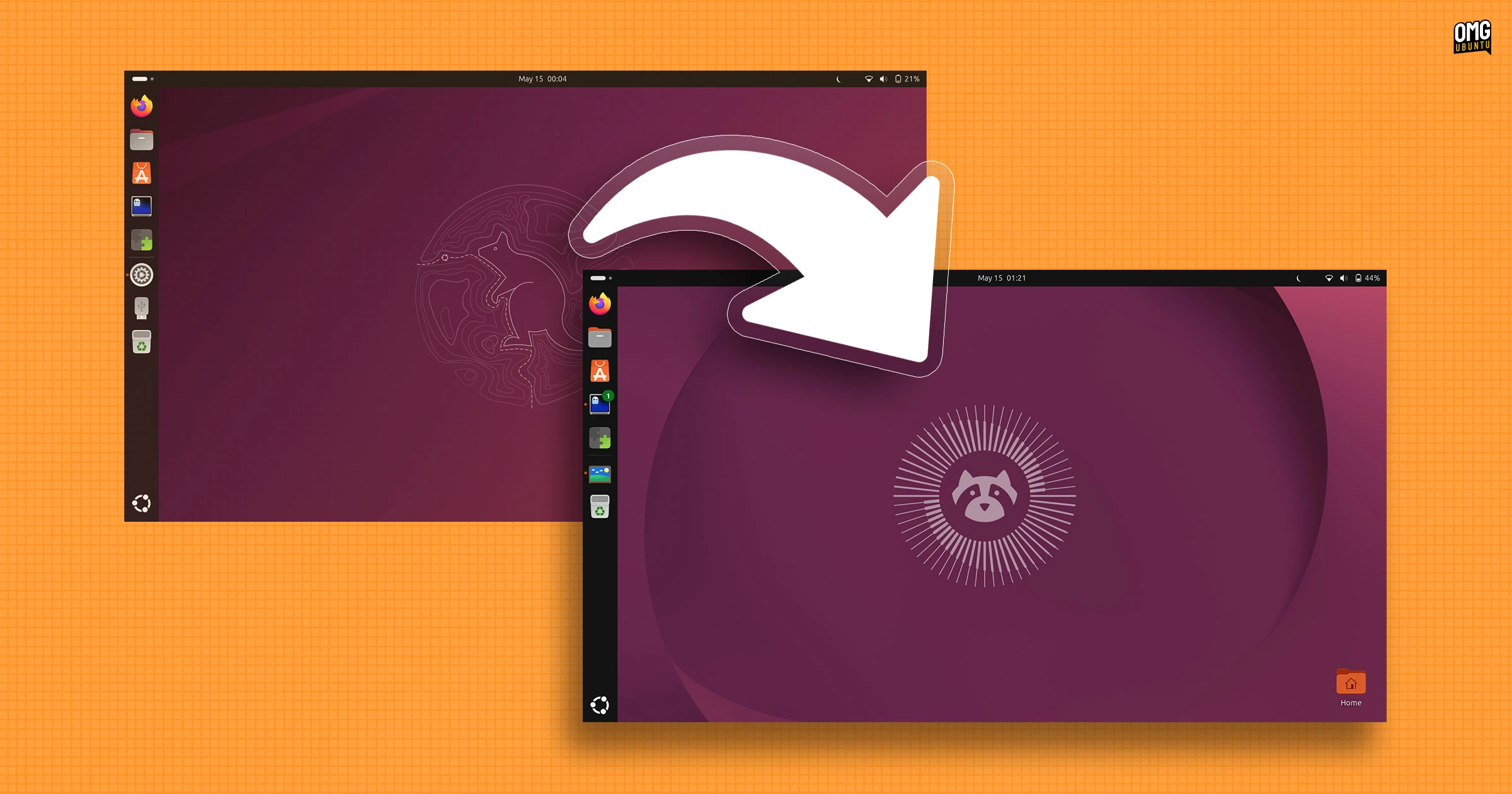


Ubuntu 26.04 LTS upgrades are officially live, and with Ubuntu 25.10 support ending in July, you’ll want to get around to upgrading soon.
Ubuntu 26.04 LTS released on 23 April 2026, with GNOME 50 and Linux 7.0. It also added new default apps, Snap store and web searching features from the GNOME Shell Overview and the ability to enable Ubuntu Pro via the Security Center.
The ‘Resolute Raccoon’ also delivered a fresh set of folder icons, shows visual password feedback for sudo commands and offers fuss-free access to NVIDIA CUDA and AMD ROCm for developer (both live in the archives, a mere apt install away).
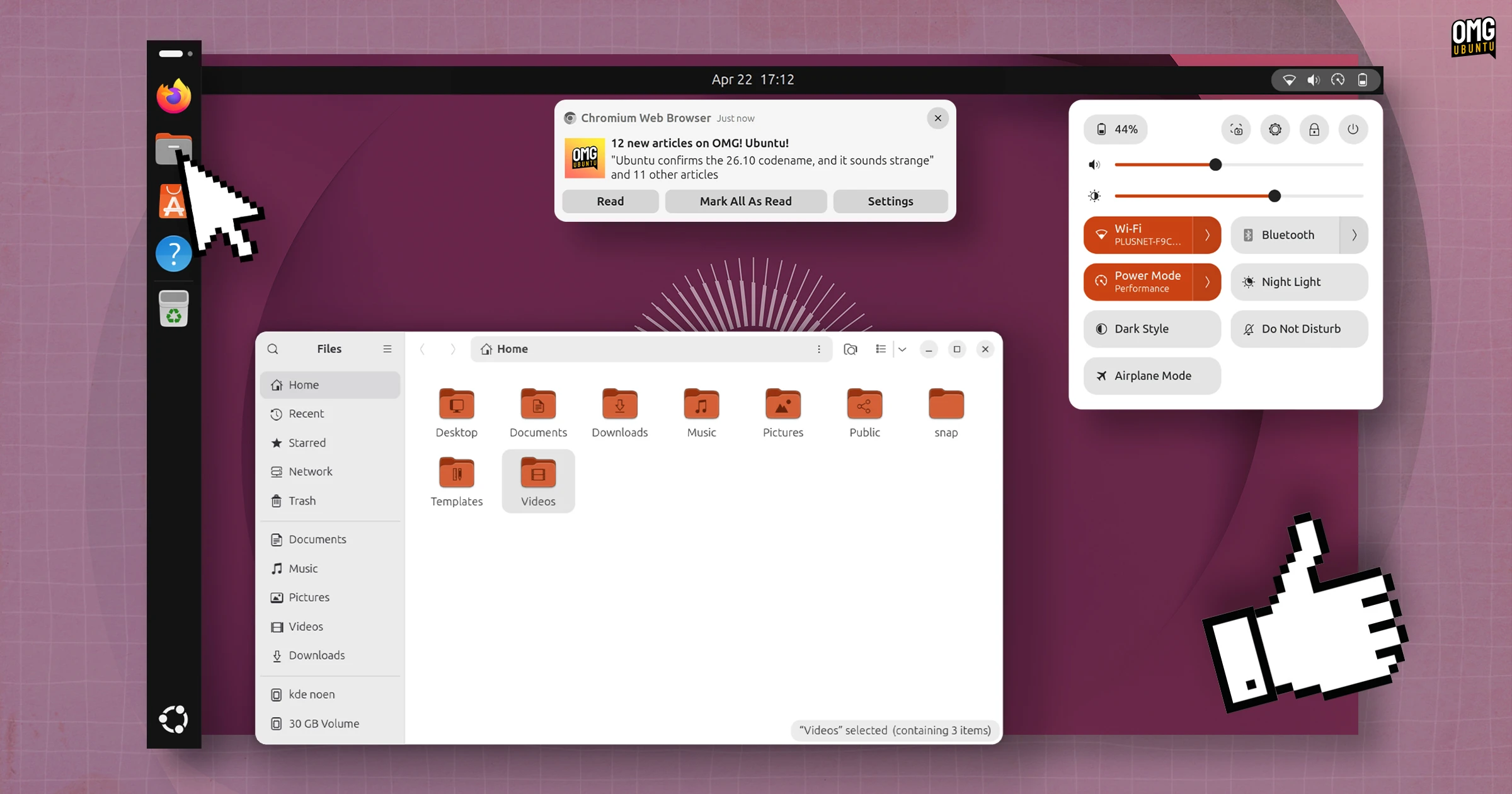
All in all: plenty of reasons to make the jump from an earlier version of Ubuntu, worth it (assuming the end of support for Ubuntu 25.10 in July 2026 wasn’t motivating enough).
Many users force upgrade from the command line prior to the official upgrade using do-release-upgrade -d. That method can work, but comes with no guarantees or assurances that a working desktop is delivered at the end.
Now that the upgrade gate is officially open, graphical upgrades are available, holding your hand through the entire process. And if the process of migrating from one release to the next goes wrong, you can complain.
Indeed, the whole reason it’s taken nearly a month for Ubuntu 26.04 upgrades to be enabled is for that exact reason: a handful of (some niche) bugs that saw some key packages uninstalled on certain setups, leaving some users with issues.
With all of the updates in place to ensure the hop from 25.10 to 26.04 goes smoothly, you can upgrade knowing it will work (though it’s never a bad idea for those with essential systems to wait another week or two, should any further issues come to light).
How to upgrade from 25.10?
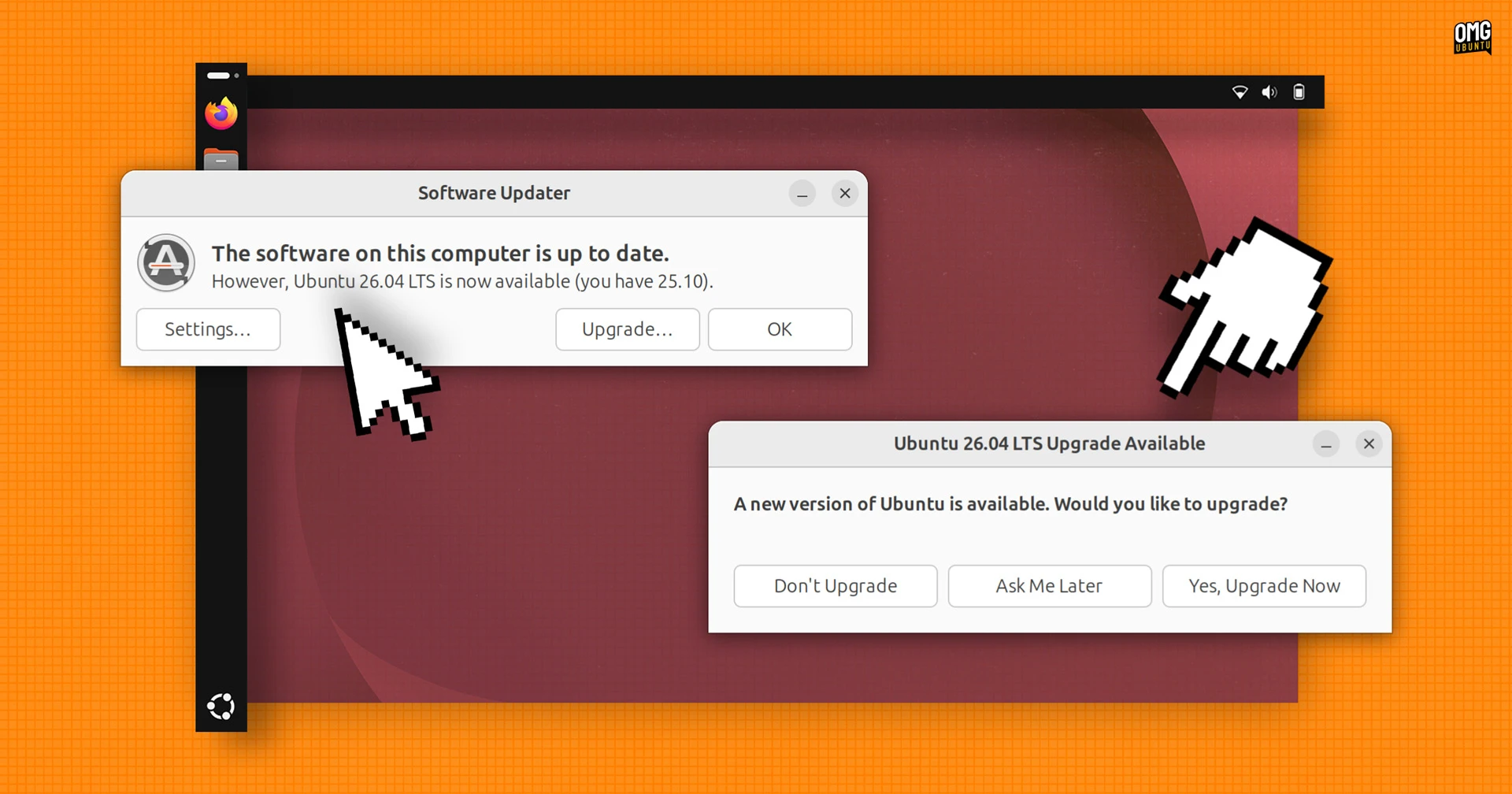
You can wait for your Ubuntu system to notify you that a new version of Ubuntu is available, or you can open Update Manager and run an update check. If all updates are installed, it will mention that 26.04 LTS is available and give you the option to upgrade.
Back up critical files, configs and settings before you begin. Ensure you’ve installed all pending updates and that you have enough free disk space for the upgrade to complete. You’ll need to be connected to the internet to upgrade, obviously.
From there it’s common sense.
Click the prompts and follow the steps as presented. You can continue to use your computer while the upgrade takes place, however your system may slow down and apps might look weird or crash as packages are upgraded in the background.
During upgrades, it’s best to let the upgrade take place without the system also needing to balance all of your browser tabs, e-mail and other work.

Depending on your setup (few of us run truly vanilla systems) you may see a few fear-inducing (and oddly-sized) warning dialogs along the way. The one about ‘foreign packages’ often confuses people; it’s innocuous really; read it carefully and click continue.
PPAs and third-party APT repos get disabled during upgrades. You must manually re-enable them on the other side to get updates. New installs of 26.04 no longer include the GUI Software & Updates tool to manage PPAs, but it isn’t removed during in-place upgrades.

Once installation is complete you’ll be prompted to restart. Resist the urge to start poking around to see what’s changed; it’s best experienced with everything behind-the-scenes firmly in place. On first login the welcome assistant will run, but…
It’s much the same as you left it.
All your apps and files and settings are present post-upgrade. The new Showtime and Resources apps are installed alongside Totem and GNOME System Monitor, so you can choose to uninstall the latter set if you don’t need duplicate tools.
One thing to note: system requirements for Ubuntu 26.04 suggest a minimum of 6GB RAM for smooth running, whereas 24.04 and 25.10 only asked for 4GB. The distro hasn’t gotten fatter; this is an honesty bump as the apps used on Ubuntu are now more demanding.