



Ghostty 1.2 released on September 15, 2025 with 6 months worth of changes (over 2,600 commits). As a cross-platform terminal, there are improvements to Windows, macOS and Linux (and newly added support for FreeBSD).
In this post I mainly focus on the Linux changes in Ghostty 1.2 since y’know, this is a blog about a Linux distribution (points if you can guess which one). Also: this post is not a review or introduction to Ghostty itself; I’ve covered this app plenty in the past.
Ubuntu 25.10 has a new default terminal app in Ptyxis – solid, performant and user-friendly. But it’s not the only modern desktop terminal emulator offering fancy features: Ghostty is a frightfully good alternative too.
Ghostty isn’t aimed at people who don’t use a terminal often. It’s for those who spend a lot of time staring at the command-line and who regularly work across OSes, where the a natively integrated but consistent cross-platform experience is its main USP.
There’s always room for a few more creature comforts mind, as this update shows.
Ghostty 1.2 Highlights
In August I reported that Ghostty underwent a GTK rewrite, “fully embracing GTK’s reference-counting object” rather than try to do its own thing in its own way. The effort has paid off hugely. Memory leaks have been nixed, and Ghostty runs and integrates on Linux better than ever.
On Linux, those wanting a more compact, streamlined look can make use of the new gtk-titlebar-style=tabs configuration option to merge tabs into the window titlebar:
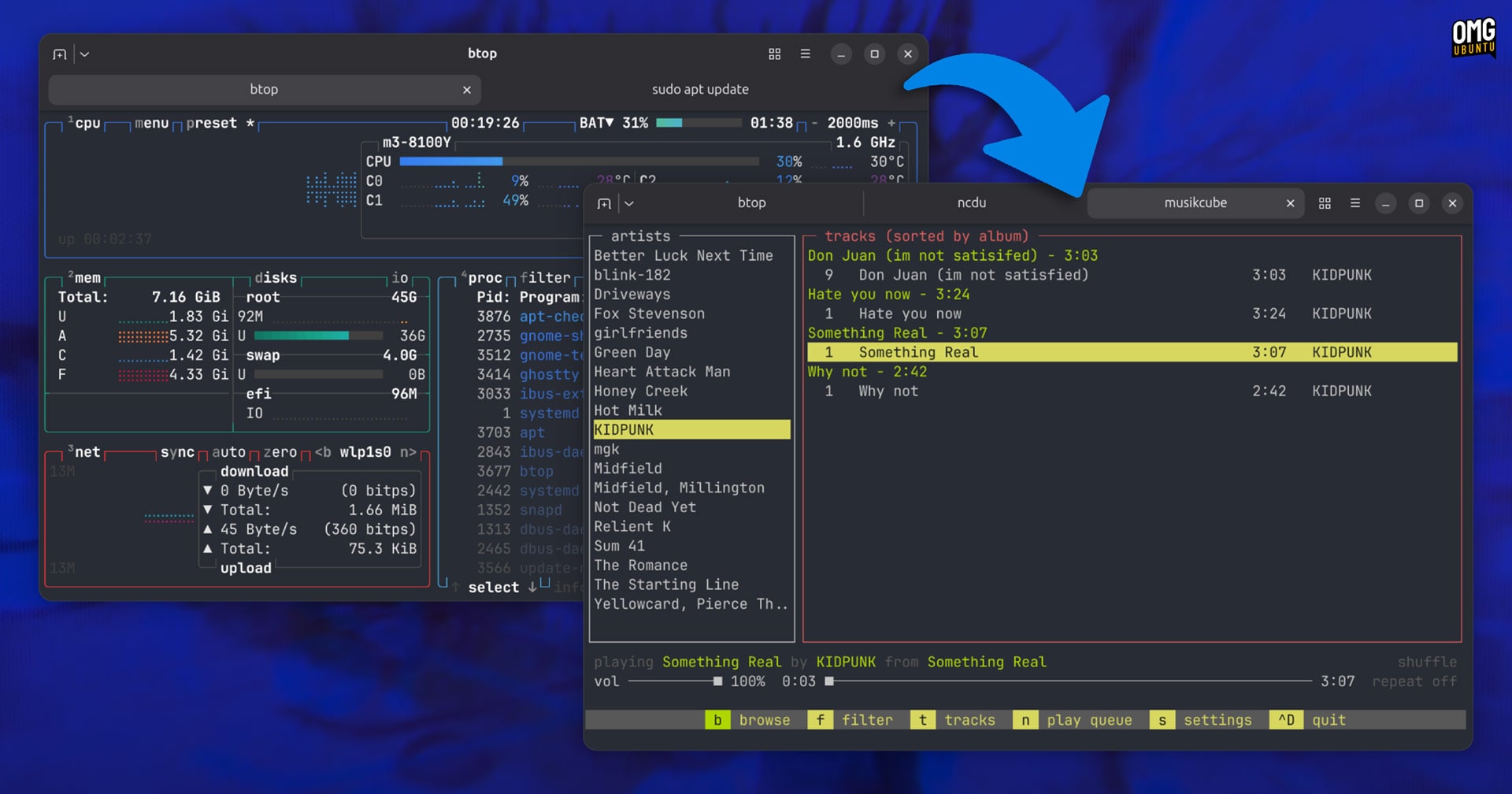
There’s also support for GUI OSC 9;4 progress bar sequences (like the ones used by systemd), support for audio bell (defaults to off), visual bell and bell emoji in terminal tab titles when commands complete or error out requesting attention.
DBus and Systemd activation services are added to improve startup speeds, the new tab button adds a dropdown menu to quickly create new splits within an existing tab, and Linux OSK support makes using Ghostty on Linux tablets and touch-enabled laptops easier.

And this version adds background image support. You can specify an image to use as a terminal background using the background-image config value, with background-image-opacity and background-image-fit options to adjust how it looks.
Ghostty 1.2 now supports its quick terminal feature on Linux with Wayland, making use of the wlr-layer-shell protocol (though this does not currently seem to work on GNOME Shell, even if libgtk4-layer-shell0 is installed).
On other desktops, quick terminal means you can use Ghostty as a dropdown terminal (think Guake, ddterm and the many others long popular on Linux), by pressing a single key — which usually works even when Ghostty isn’t focused or running.
And because of the way Ghostty is built, you get a fully-featured dropdown terminal with support for tabs, splits, and other features.
Ghostty 1.2 adds a new command palette. This can be used to action the majority of things there are dedicated keyboard shortcuts for, but… using a different kind of keyboard shortcut: words! It is also able to surface less-common actions which lack dedicated keyboard shortcuts.

On Linux, the command palette can be triggered by pressing ctrl + shift + p but, for those who’d prefer something else, it can be reassigned in Ghostty’s config. There’s an entry for it in the in-app menu, so you don’t forget it there’s at all.
And more things are planned for the palette, with the terminal’s devs saying they are “working on a new terminal sequence specification that would allow terminal programs to expose any of their actions directly in the command palette”, which would be useful.
Other changes of note for Ghostty Linux users in the latest version:
- Set quick terminal size using new
quick-terminal-sizeconfig value - Opt-in shell integration features to make Ghostty more compatible with SSH
- Renderer backends reworked to shared core logic (OpenGL and Metal)
- Custom cursor shaders can use custom effects and animations
- GTK global keybinding support (via XDG desktop portal)
- FreeBSD support
- Fallback font size adjustment
- New built-in glyphs
- Builtin Nerd Font symbols condensed to a symbols-only font
- libadwaita is now a hard dependency
A new app icon is included on Linux. The update designs sticks close to (but is not a 1:1 adherent of) GNOME’s visual style. On Ubuntu which uses the Yaru icon set, it fits in well — far more than the older, rounder and glossy icon did.

See the full Ghostty 1.2.0 changelog for more detail, links to code commits, bug reports and merge requests that explain the rationale behind some changes. You’ll also find links to documentation on how to use many of the new features and create a configuration file.
Download Ghostty for Ubuntu
Ghostty is free, open-source and cross-platform software available for macOS, Linux and, as of this release, FreeBSD too. Installers and instructions for all OSes can found on the official website.
Ubuntu users who want to try Ghostty can use community-packaged DEB installers. These are built from upstream source code and are available for all supported Ubuntu releases (Intel/AMD & ARM), plus Debian Bookworm and Trixie.
As standalone DEBs, they don’t auto-update to newer versions. So, when a new version of Ghostty is released, you need to download a new DEB and install it again — updates apply over the top of your existing version, so settings, configs etc stay intact.
You can download those builds from the GitHub releases page linked below and install as you would any other DEB.