





Mozilla Firefox is a decent web browser for most needs, but what if it was better? That question finds a potential answer in Zen Browser.
Zen is a free, open-source Firefox fork available on Windows, macOS, and Linux. It’s not new (having been around since 2024) and is currently in beta (there’s no stable build to try).
Not being based on Chromium is a USP by itself, but Zen has more to it. More than “just” a repackage of Firefox with different settings, Zen rethinks the user-experience from a modern POV, with novel features what feel organic not tacked-on.
In short, it’s one of the most impressive Firefox forks I’ve seen.
If seeing Firefox fail to capitalise on its potential leaves you frustrated, Zen offers a calm, considered alternative – and a holistic antidote to aimless AI feature creep, privacy pivot, and Mozilla management’s apathetic vision for its ‘legacy product’.
What is Zen Browser?
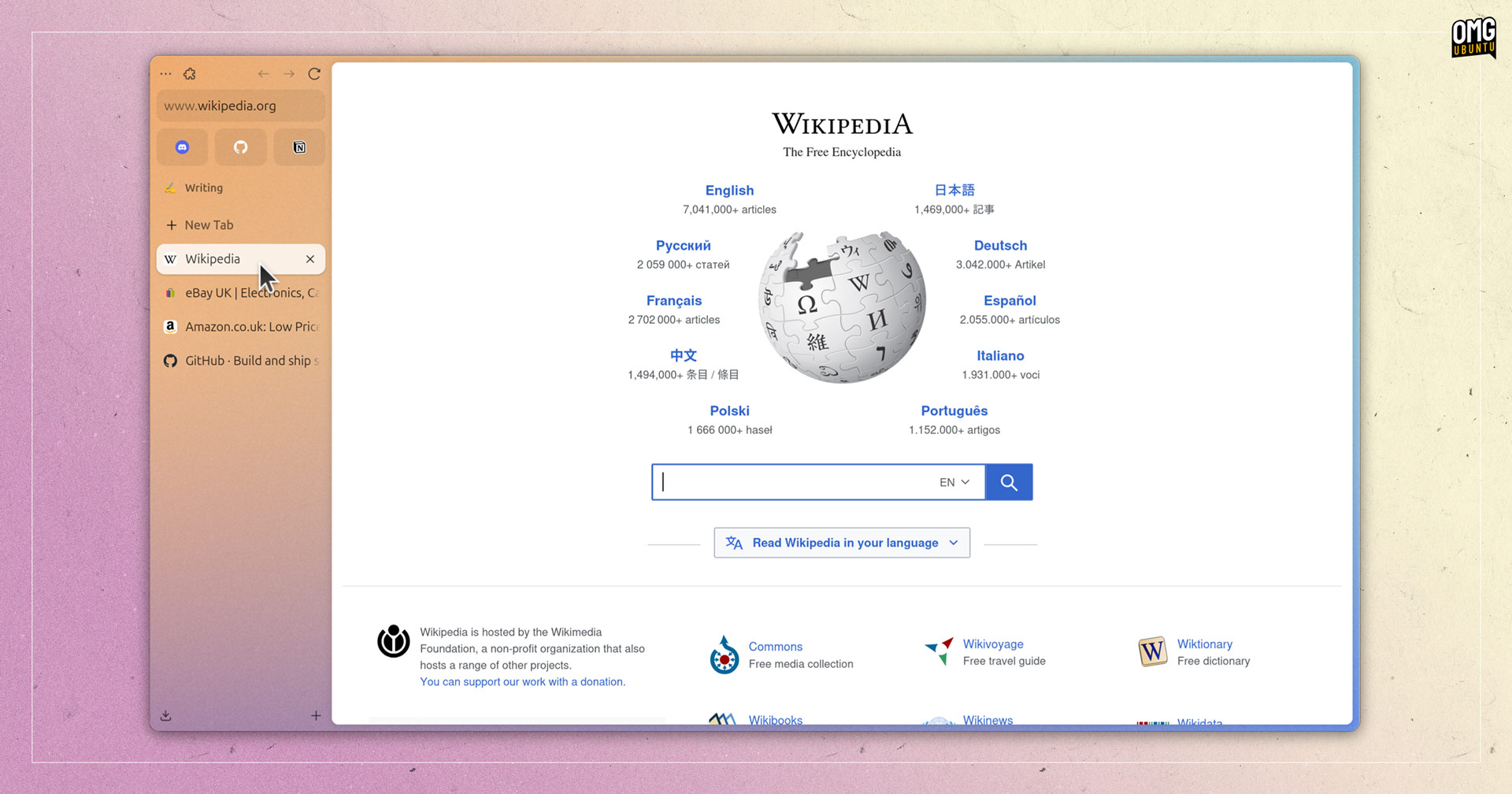
As a Firefox, Zen Browser supports the same web extensions, web standards, and web compatibility that its downstream does. And many of Firefox’s underlying features, DRM support, picture-in-picture mode, on-device translations, sync, etc remain accessible.
But there ends the similarity.
Despite its introspective name and meditative platitudes, Zen delivers tangible changes. The official website leads with: “beautifully designed, privacy-focused, and packed with features. We care about your experience, not your data”.
While it inherits much of the underlying AI features and call-home telemetry present in Firefox, Zen developers have chosen to disable most of that stuff by default — and are currently debating whether to strip them out entirely.
Zen Browser is Presented in Widescreen
The first thing you’ll notice about Zen is that it looks nothing like Firefox. It has vertical tabs by default, embeds the browser inside a rounded canvas and set against a colourful background, lacks a new tab page or speed dial, has a small address bar… And more.
But those ‘core design choices’ aren’t there for the sake of being different. They’re all part of what makes Zen, Zen, and intrinsic to its fundamental design ‘philosophy’.
Take vertical tabs. Most modern displays are widescreen, with more horizontal space than vertical. Yet, most software patterns still skew squarer. Zen eschews that by using horizontal space for key UX elements, rather than squeezing content down from the top.
Vertical tabs are distinct from Firefox’s own recent implementation. The sidebar can collapse to show only site icons or be expanded to show full tab titles. A dedicated area for ‘Essential’ sites is at the top, always iconified, reorder-able, and adaptive on resize.
There are other toolbar layout options available to choose in Settings, including a layout which puts the address bar (but not tabs) at the top, and another which compacts things down further to really let the mind zone in on web content.
Features That Actually Matter
Zen comes equipped with a number of features which, to be blunt, feel natural – like they belong in a web browser. I’m old enough to remember the pre-tab era. When I first tried Firefox I was blown away by how obvious and transformative tabbed browsing was.
A few of the features included in Zen have similar vibes. They feel like organic and logical aids to web browsing rather than over-engineered gimmicks that get in the way of it.
Glance is a one such feature. It’s a “quick look” preview mode you can use on any link on any web page, by ctrl + clicking. Instead of a link opening in a new tab and interrupting your flow, it loads as a fully interactive preview on top of the parent tab.
For those quick reference checks, Glance soon becomes second nature. In a way, it’s the logical way to tackle to the ‘problem’ that Mozilla’s glacially-generated AI Link Previews attempt to — Glances is free of hallucinations, verbose nonsense, and neutered nuance!

Three buttons appear next to previews in Glance so you can close it (you can also click outside the preview); ‘expand’ it to a full tab; or open it as a ‘split’ tab — another fantastic feature.
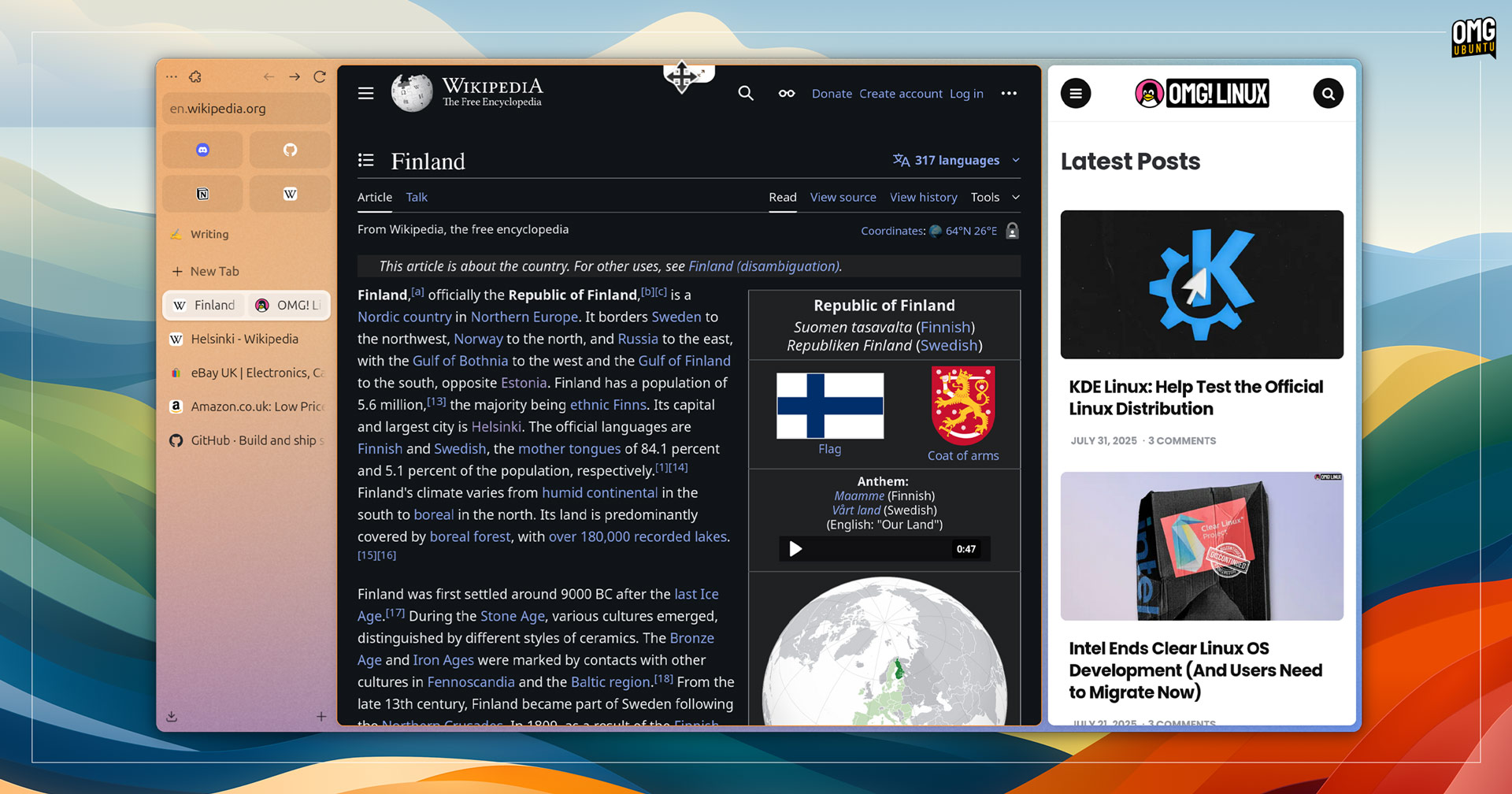
Zen’s Split View feature lets you open up to 4 tabs side-by-side so you can view them at the same time, in the same tab. You don’t need to tear tabs out and tile them using a window manager as it’s all handled in-app for easy multitasking.
Even on my low-spec laptop, Split View is fluid in use. Splits open without issue, using the drag handle to reposition splits works flawlessly, and resizing splits is instantaneous. Tabs open in this mode can be just as ‘unsplit’ to view in a dedicated tab.
Spaces enable you to group tabs by a theme, topic, or task, but they are not merely ‘tab groups’ since the workspace system lets you do more than assign names: each maintains separate session state, cookies, and can be given their own “essential” tabs.
Container integration lets you tie workspaces to specific Mozilla containers so you can make use of separate browsing contexts within a single app. Think profiles, but without the contrived “persona” gimmicks.
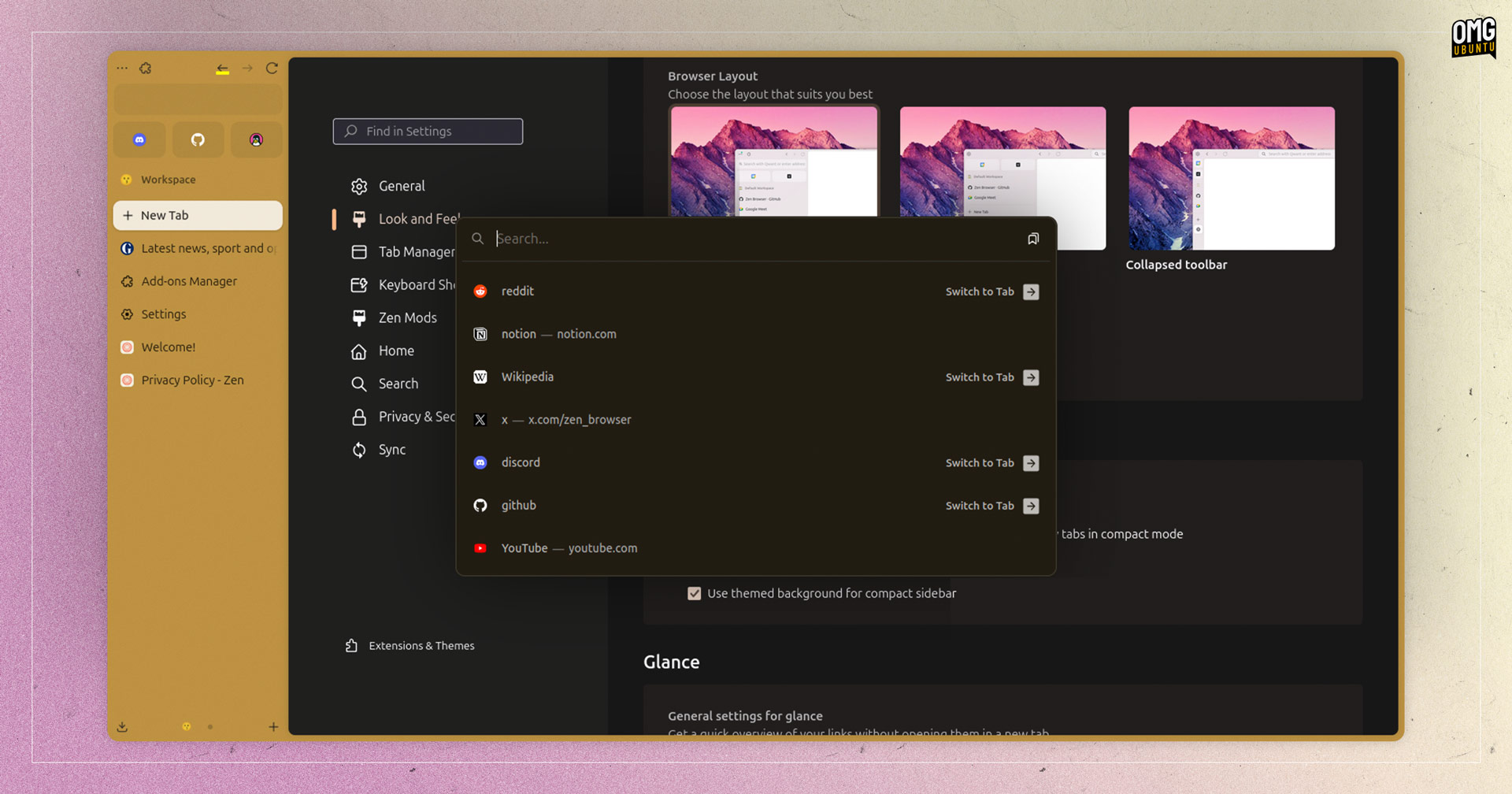
Clicking on the new tab button in Zen will not open a new tab page as there is no new tab page. Decades of browser usage has conditioned me to expect one, so the fact it doesn’t is a little jarring at first.
New tab pages in most web browsers are filled with distractions. You open a new tab to do something specific, and your eyeballs get hijacked by algorithmically-gamed “content suggestions” and sponsored links. Little of that is for our benefit.
But Zen’s approach is better: floating prompt (think Spotlight on macOS, or Linux equivalents like KRunner, Albert, Ulauncher, etc) where you can enter search terms, full addresses, or search your existing tabs and bookmarks:
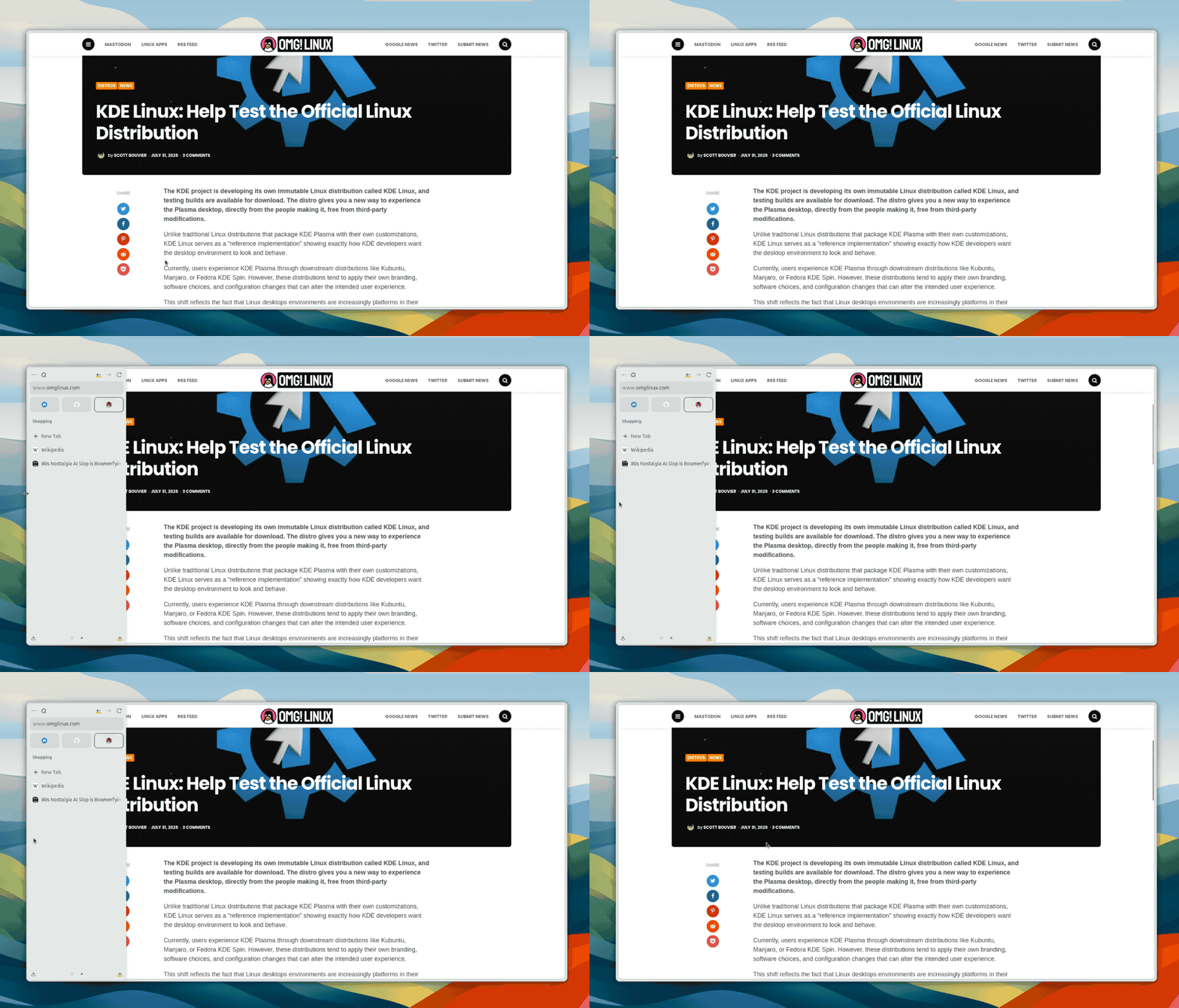
Zen’s developers described Compact Mode as a main feature. Like Focus Mode in Orion — which is coming to Linux — compact mode hides everything: tabs, buttons, url bar, etc. Maximum space is given to web content.
You won’t end up with repetitive strain injuries from toggling compact mode on and off each time you need to access an extension or toolbar item, though. Hovering at a screen edge makes hidden elements reappear briefly, so you can access them.
Vertical Tabs, Spaces, Glances, Split View, and the URL Bar provide an experience that feels more cohesive than what might otherwise be achieved by installing a disparate set of Firefox add-ons from varying developers in a vanilla build, and hoping for the best!
Background theme
Thought the screenshots in this post you’ll have noticed that a colourful window frame. This is part of the browser and not an affectation of my desktop environment or a custom theme I’ve installed.
During onboarding, Zen prompts to pick a background colour (or gradient), with options to adjust the saturation and increase noise intensity. You can also enable persistent light or dark mode, or have it change with your system setting:
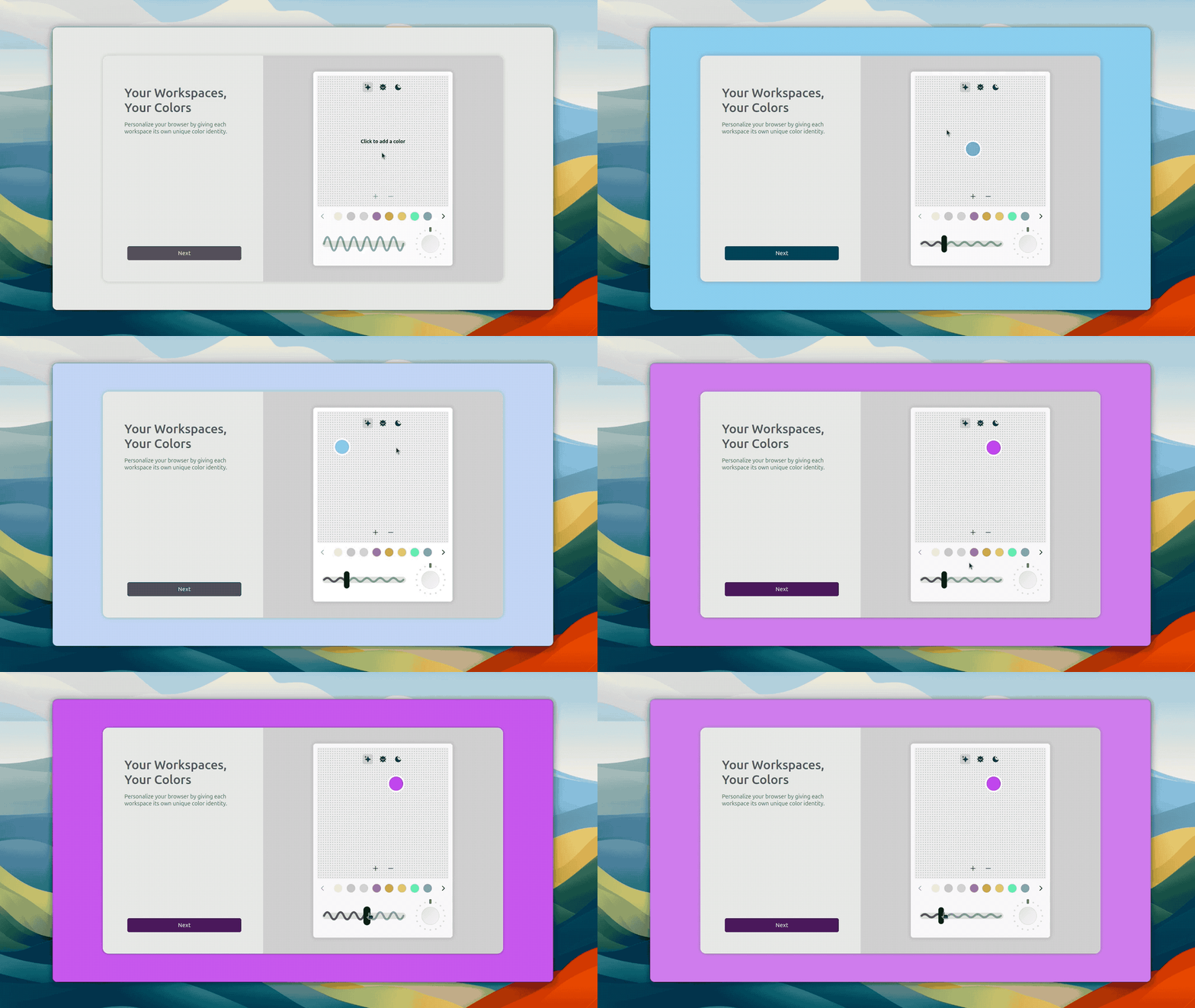
I get that not everyone will like the coloured background, or that web pages are ensconced in a rounded canvas sat against one (you’ll noice a thin border all around). Personally, I like how distinctive it is. It lends the browser personality, and helps it stand out.
Settings, Privacy, and Mods
Naturally, keyboard shortcuts are hooked up to most of the features mentioned above. Taking time to read through the official documentation is recommended — as ever, be open to adapting: Zen isn’t Firefox, and it will not work exactly the same.
Privacy defaults are more aggressive than Firefox’s out-of-the-box settings (like most things in this browser, that can be configured or modified). Telemetry is stripped out from the core, and the number of external connections the browser makes much less.
The browser comes packed with a variety of settings and options, so you can adjust the look and feel, toolbar layouts, enable/disable or configure features like Glance and the floating new tab prompt.
Further customisation is catered for via Zen Mods. These are community-made plugins, themes, and user-interface tweaks designed specifically for Zen Browser, e.g., making compact mode more compact, adjust tab styling, show audio indicators, etc.
Installing Zen Browser Ubuntu
You won’t find the Zen Browser in Ubuntu’s repos or the Snap Store. This means you can’t open the App Center, punch in Zen, and get it in a couple of clicks.
Instead, the official AppImage is the recommended way to run Zen on all Linux distros, including Ubuntu.
You can download the latest version from the Zen GitHub releases page. AppImages require manual update checking unless you use a tool like Gearlever.
Alternatively, Zen can be installed from Flathub as a Flatpak app. Most modern web browsers work fine in these containerised formats, but there can be edge-cases where some sites or certain extensions do not work (same for Snaps, too).
Do keep in mind that Zen Browser is in beta, and beta software may not offer as tranquil or meditative an experience as a stable build.
But in my own day-to-day usage, I found Zen’s performance, stability, and page loading speeds to be on on point, and it hasn’t missed a beat. DRM playback for content on streaming sites can be enabled,
A better browser?
Zen is almost without rival on Linux — other operating systems have other choices, like Perplexity’s Comet browser, the aforementioned Arc, and the much-derided Dia.
The fact it’s not riding the AI bandwagon, and is not another Chromium clone will, to some, be a novel attraction of its own. But Zen has plenty to offer, not least its interface ‘philosophy’ that is wedded to the present than the past.
Those baffled at Mozilla’s lack of innovation in the browser space, or its glacial approach to adding the kinds of features that make using a web browser to browse the web easier, try Zen. It shows what Firefox could be with a bit fresh thinking.