



AppImages are great: a single runtime contains everything you need to run an app, including dependencies, that you double-click to run from anywhere on your system.
But therein lies the rub, my friend.

See, if I download an AppImage for software like Audacity, Kdenlive, et al, it’s almost always to my Downloads folder.
To run it, I navigate to that folder, right-click on the binary, give it permission to execute, and double-click on it to run.
But I have to go back to that folder to open it every time; it doesn’t appear in the Applications Grid alongside my other apps.
I could manually create a .desktop file for the AppImage, but that is effort. Which is why I wrote about a tool to integrate AppImages on Ubuntu a few years ago.
That tool created a system shortcut whenever you ran a new AppImage. It could also move the runtime to a directory of your choosing, avoiding any accidentally deletions (we’ve all done it, don’t pretend).
Sadly, developer on that tool has ground to a halt. While the DEB installer on the GitHub still works on Ubuntu 24.04 LTS, there is a newer, better and actively maintained alternative that does all of the above – and a lot more too!
Gear Lever: Essential for AppImage Users

Gear Lever by developer Lorenzo Paderi is a simple, straightforward app to streamline using, configuring, and even updating AppImages on Ubuntu and other Linux distributions.
It organises and moves AppImage runtimes for you; creates desktop entries with app metadata and icons to make finding and opening them easier; and it can install new versions of AppImages in-place alongside a backup, if you need to roll back to an older build.
Super handy features — oh, and the app looks great too!

Using it just as easy: install Gear Lever, then open it, drag and drop your .appimage on the main window, and details about that runtime appear along with options.
Click ‘move to app menu’ button to “integrate” the AppImage with your system, i.e., create an app launcher shortcut you’ll find in the application grid and can pin to the Ubuntu Dock.
You can then get fancy.
I like to group my AppImage shortcuts in a folder on the application grid. I tend to group most apps by their respective source (not that I use anything other than search to launch things, but a row of folders just looks nice and tidy):
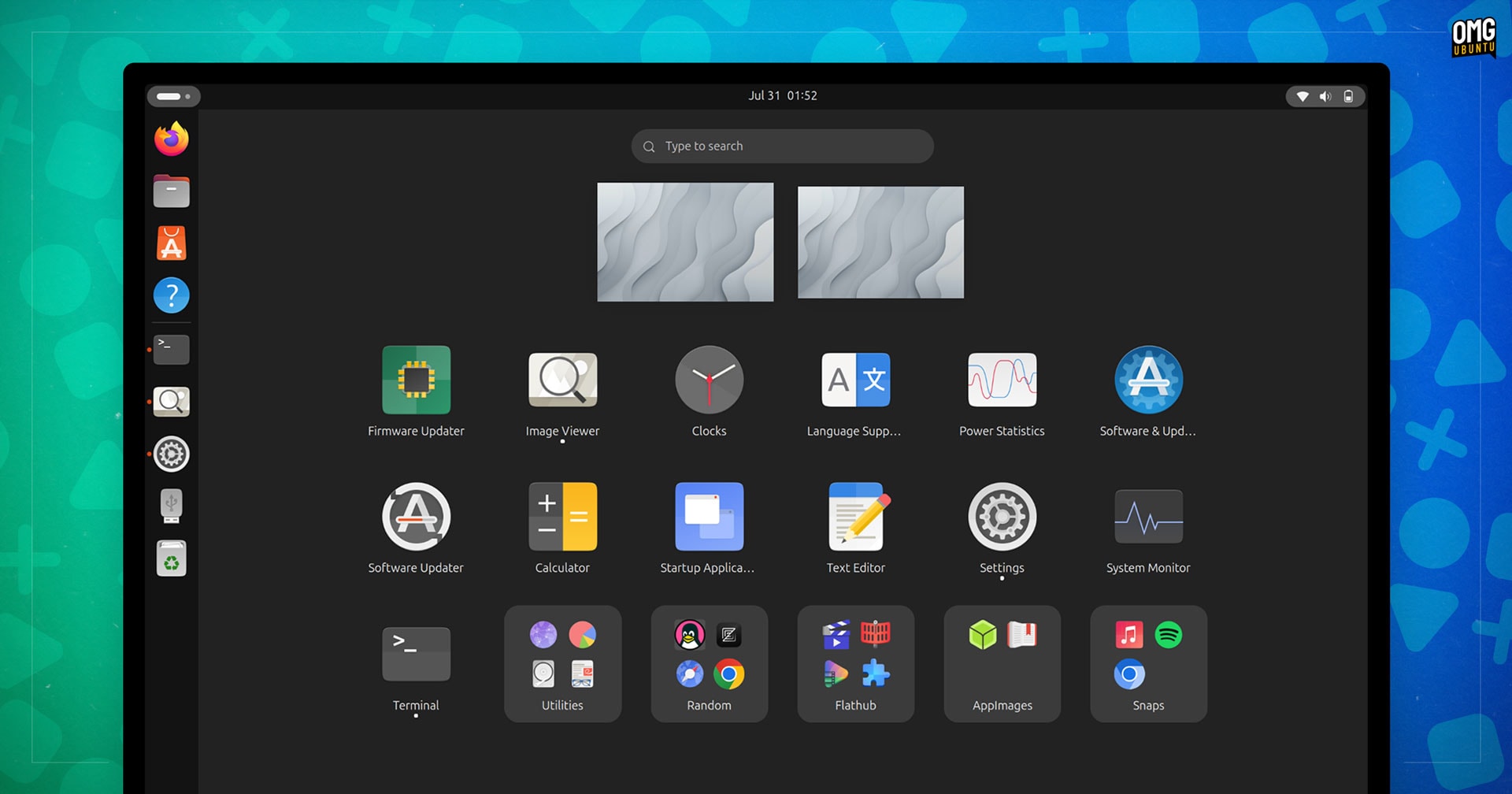
Features of Gear Lever at-a-glance:
- Integrate AppImages into the app launcher/menu
- Drag and drop AppImages from your file manager
- View AppImage details, including hash and version number
- Keep AppImages organised in a custom folder
- Manage updates: replace or keep multiple versions
- Set/customise environment variables for each AppImage
Sound good to you? If you use a lot of AppImages, you need to try this tool.
Source code is available on Github (easily compiled with GNOME Builder), but the low-effort route is to fetch the latest release as a Flatpak from Flathub. It’s updated semi-regularly too.
Thanks Valencia