



You may have noticed that Ubuntu (rather, GNOME Shell) does not provide many ways to customise notifications out of the box. If you want to change where notifications appear, or how long they stay on screen, you seemingly can’t.
Well, actually you can — via GNOME Shell extensions1.
Now, the way notifications look and behave in Ubuntu works well enough for most. Notifications appear at the top of the screen, slap-bang in the middle, right under the Date menu in the top panel — a menu that is also a notification hub where un-actioned notifications live.
But, if you want more control over the look and position of desktop notifications, like move notifications to the right of the screen, or a way to filter notifications before they even appear, there’s a brand-new GNOME Shell extension that can do it.
Meet the
GNOME Shell Notification Configurator
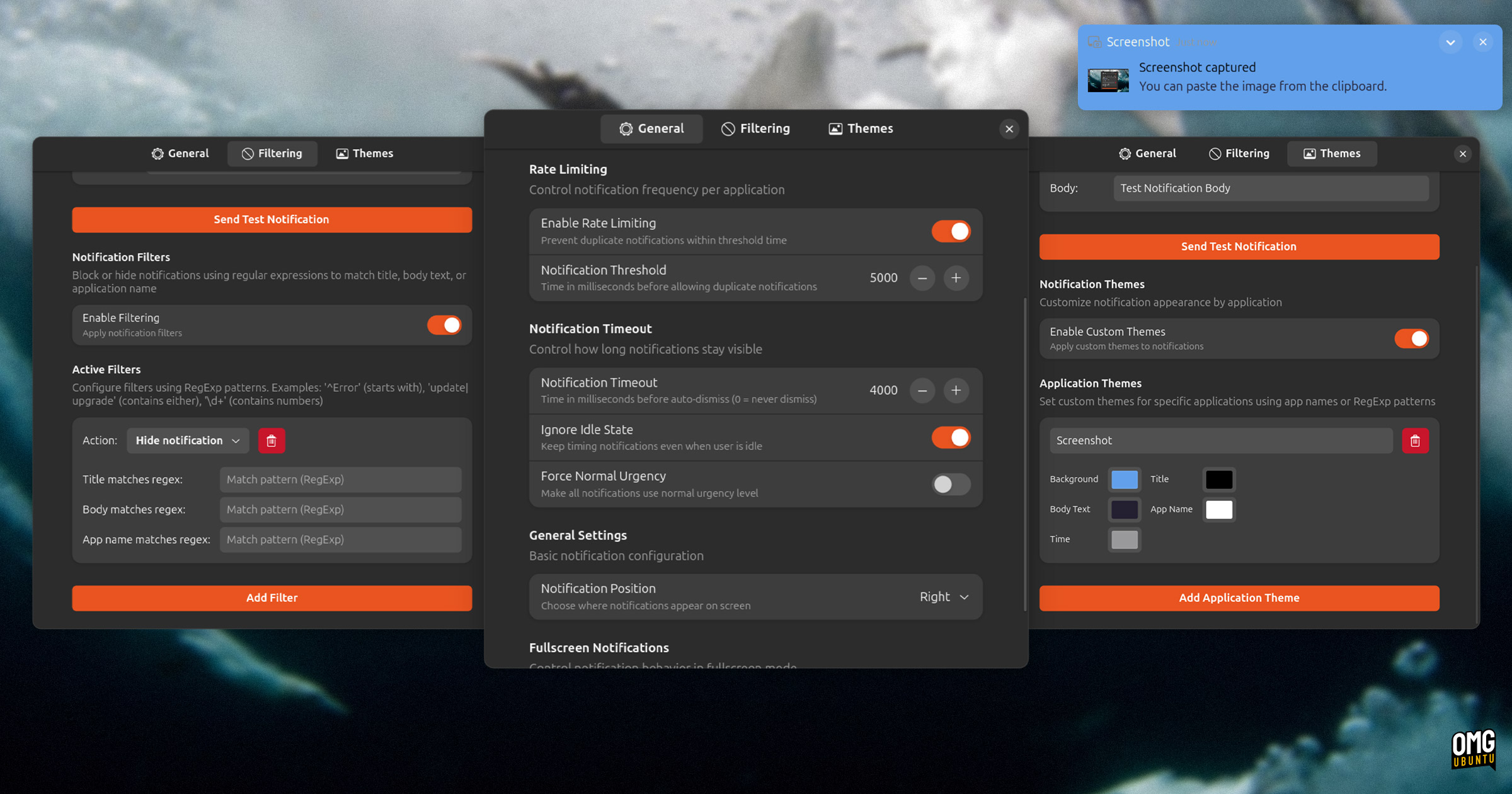
Notification Configurator is a relatively new GNOME Shell extension, developed by Artem Prokop. As it’s designed solely for customising notifications, and nothing else, it’s pretty comprehensive — with a few caveats.
While there have been various extensions to manage notifications in GNOME Shell over the years—some of those still work with the latest GNOME releases, but many don’t—having a new option that is focused on the particular task, is nonetheless welcome.
It supports things I’ve not seen in similar extension, too.
Artem’s Notification Configurator extensions supports GNOME 46, 47 and 48 (ergo Ubuntu 24.04 LTS to 25.04) and allows you to do the following:
- Set notification position – top fill, left, centre, right (it can’t move to bottom)
- Set notification rate limiting to not see alerts from the same app within a set period
- Block or hide notifications from apps, or alerts containing specific words
- Customise notification colour including only for individual apps
- Enable or disable notifications in fullscreen mode
It also has a ‘test notification’ feature, which makes it easy to preview/check changes you make, as you make then. If making use of the text-based notification filtering or custom themes, the test toasts are especially useful.
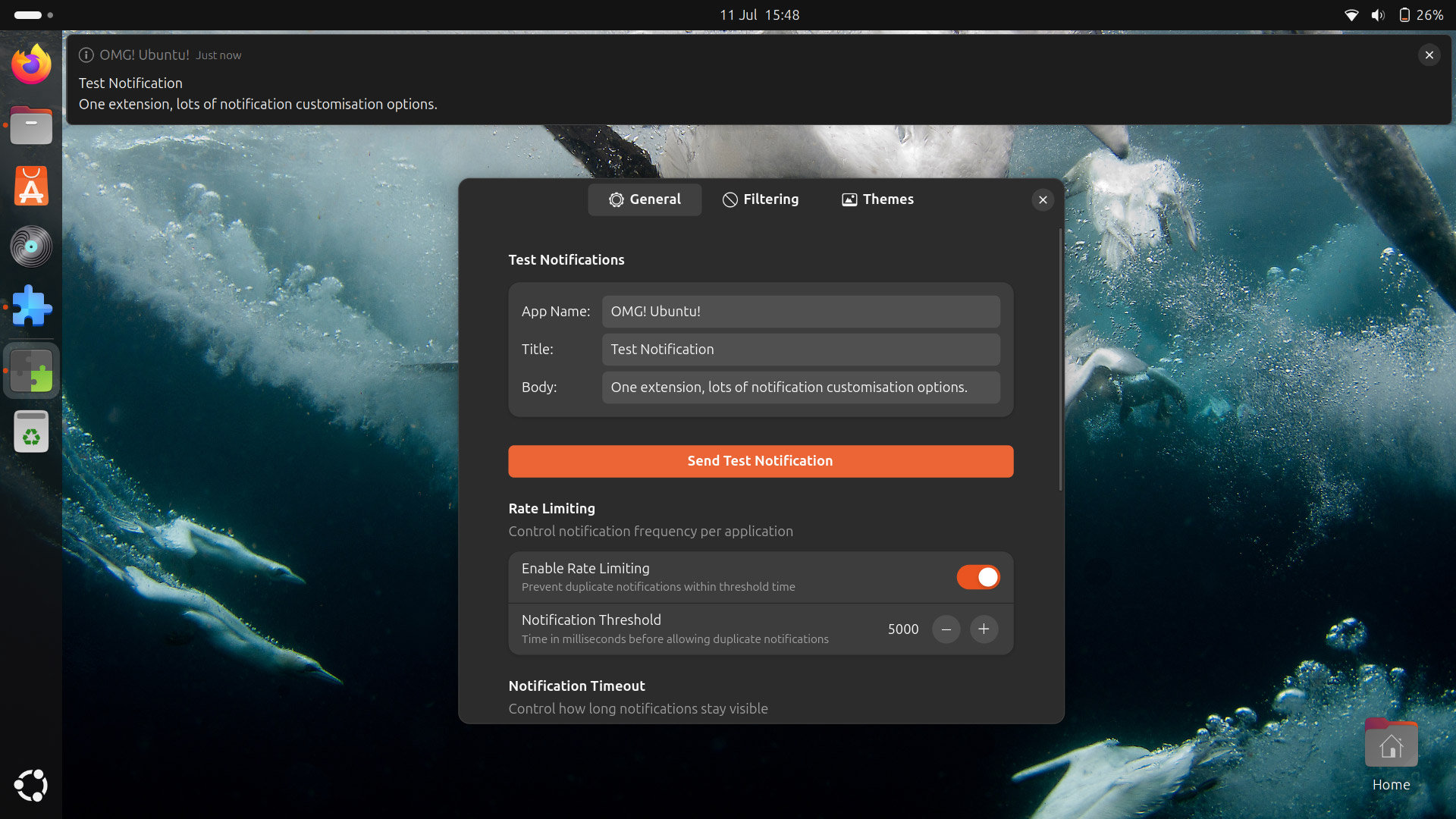
More features may be added in future updates, but there are underlying limitations to what this (or any) extension can do to the native notification system.
Try it Out
If you fancy installing this extension, it’s available on the GNOME Extensions website.
It is, as I’m sure you’re bored of be saying, easier to install (and browse, search, configure, remove) GNOME Shell extensions on Ubuntu if you use the desktop Extensions Manager app, which available in the Ubuntu repos.
Get Notifications Configurator on GNOME Extensions
- GNOME cops flacks for “not offering many settings” but that’s not quite fair: it does, most are simply hidden. GNOME curates an experience, and every toggle and switch it puts in the GUI would mean another potential combination it has to test and support when, arguably, it doesn’t want to since it has an opinionated vision on how things should work. Permutations scale! Thus, when we choose to install extensions or apps or otherwise change a hidden setting ourself we do so knowing we take responsibility if something breaks. ↩︎