



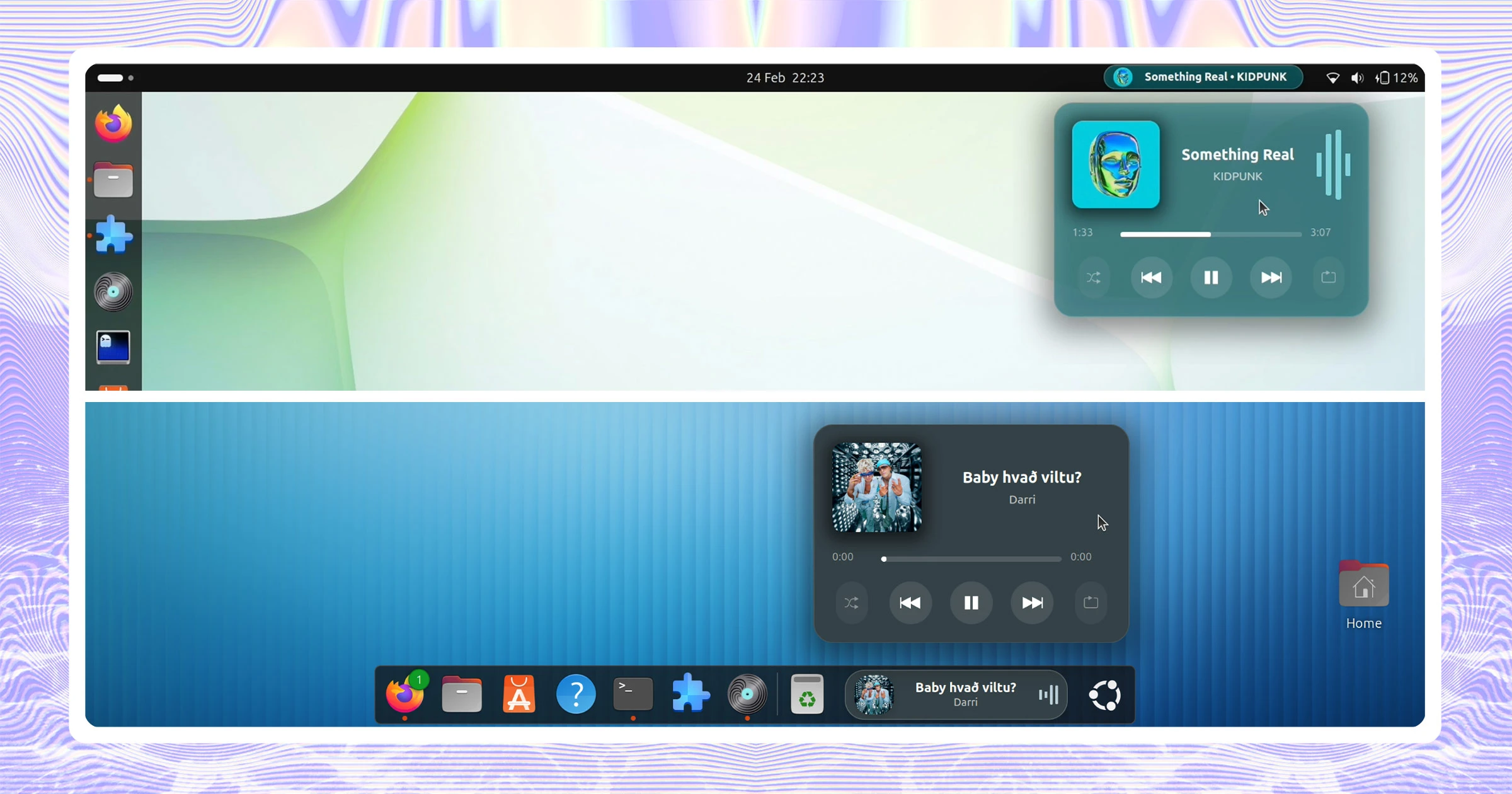
Looking for a fancier way to track what music you’re listening to on Ubuntu? Dynamic Music Pill is a GNOME Shell extension that embeds a pill-shaped media controller into your desktop panel or dock.
It shows album art, artist name and track title alongside an animated waveform visualiser. If that sounds unapologetically blingy, it’s because it is – and why not?
Dynamic Music Pill received an update today, which feels like a good excuse to finally cover it. The new update adds a compact mode to hide all text; filters to add/ignore specific players; and an option to set fallback album art.
As with anything where the appeal is visual, it helps to see this in action.
Hit play on the video embed to watch a demo of Dynamic Music Pill running on my Ubuntu 24.04 LTS desktop. You won’t hear the music track change (copyright, tsk), but it should show you how well this widget works (and its smoothness, performance wise):

While GNOME Shell has its own native media controller, it’s tucked away out of sight. This extension caters to those who want a persistent, visible now-playing applet.
Dynamic Music Pill is a flashier alternative to other now playing panel applets, but unlike some – the gSpotify extension I covered last year – the pill works with all MPRIS-compatible apps. That will cover most of what you use, e.g., Spotify, Rhythmbox, VLC, Firefox etc.
An option to turn off the stock GNOME Shell music control widget is included. This helps reduce duplicated UI clutter. If you play multiple media streams (in apps that use MPRIS), use the extension’s filter to pick which one the pill applet picks up on.
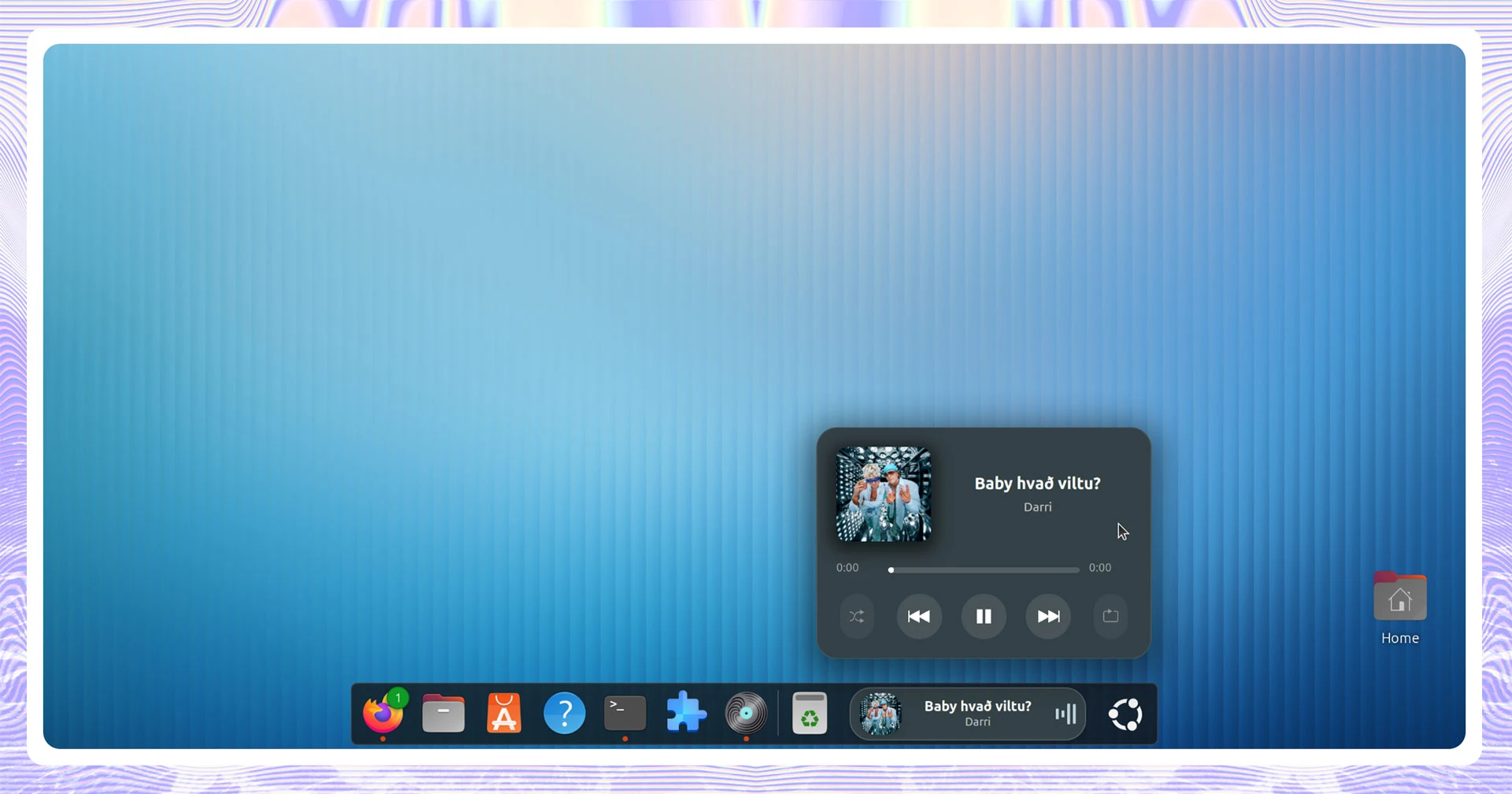
Controls are straightforward: left-click the applet to toggle playback, right-click to access the full pop-up controller, and middle-click to bring the active player to the foreground. These controls are configurable too, so if you want left-click to open the pop-up, change it.
As well as embedding neatly into the GNOME top bar, this extension also works well with Dash to Panel and Dash to Dock. In fact, it probably works best in those given as there’s more height for the embed to show info – it splits neatly onto a second line.
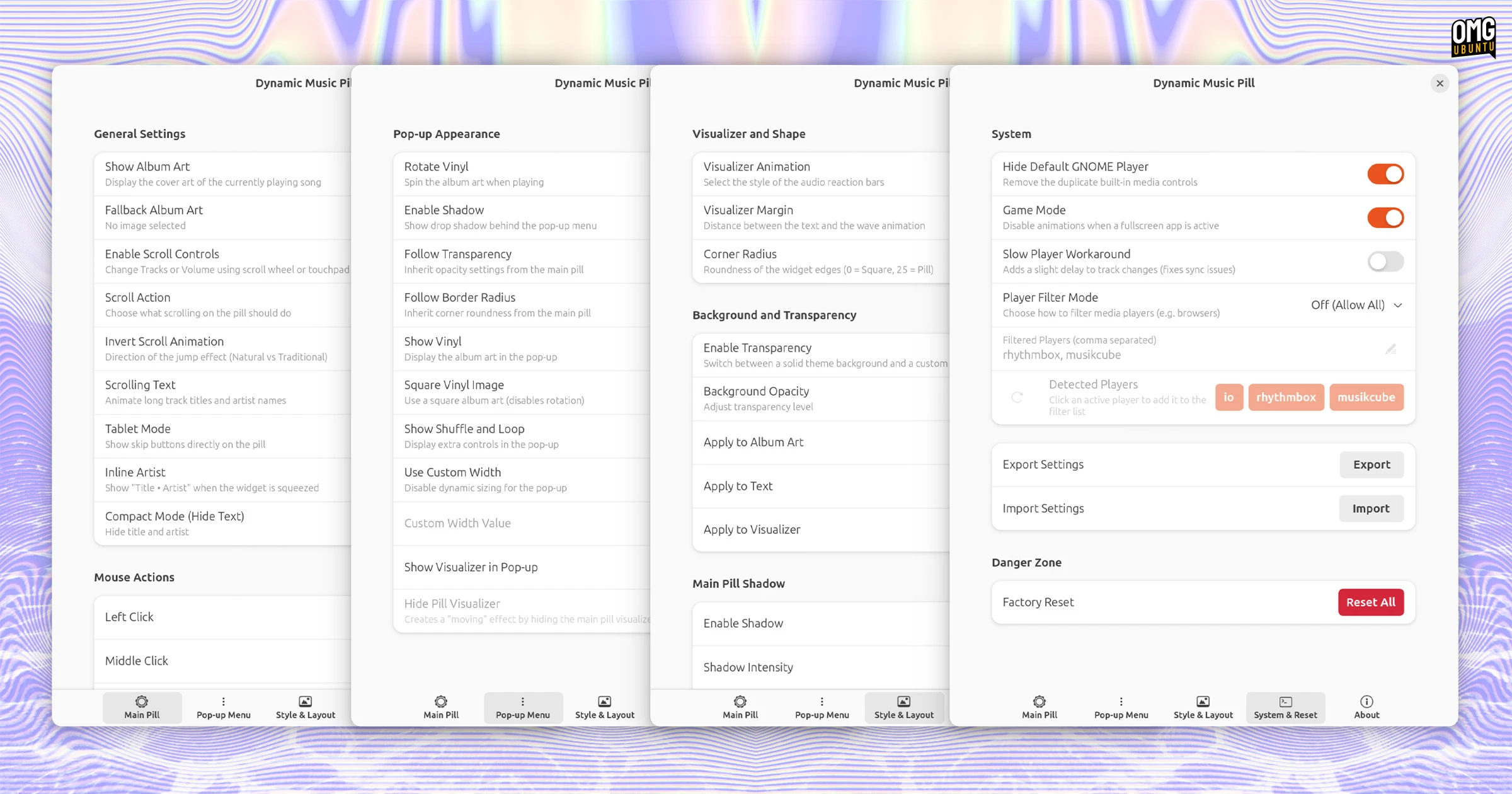
Indeed, most of what you see can be configured: background colour, transparency, whether to show player controls inside of the embed, set a fixed width for the pop up and applet, turn on album art rotation, and plenty more.
A handy ‘reset’ button makes it easy to undo any changes, should you want to start over.
Quirks and tweaks
The extension hides completely when nothing is playing, so if you install it and don’t see it, press Play in your preferred music player and it will pop into view.
One Ubuntu-specific quirk worth knowing: Dynamic Music Pill embeds itself in the Ubuntu Dock by default, not the top panel. If you use Ubuntu Dock in its default vertical mode (as most do) then when this is enabled things won’t look right… at all…
Edit: The latest update to this extension adds a vertical mode that works works well in the Ubuntu Dock, and a new player picker.
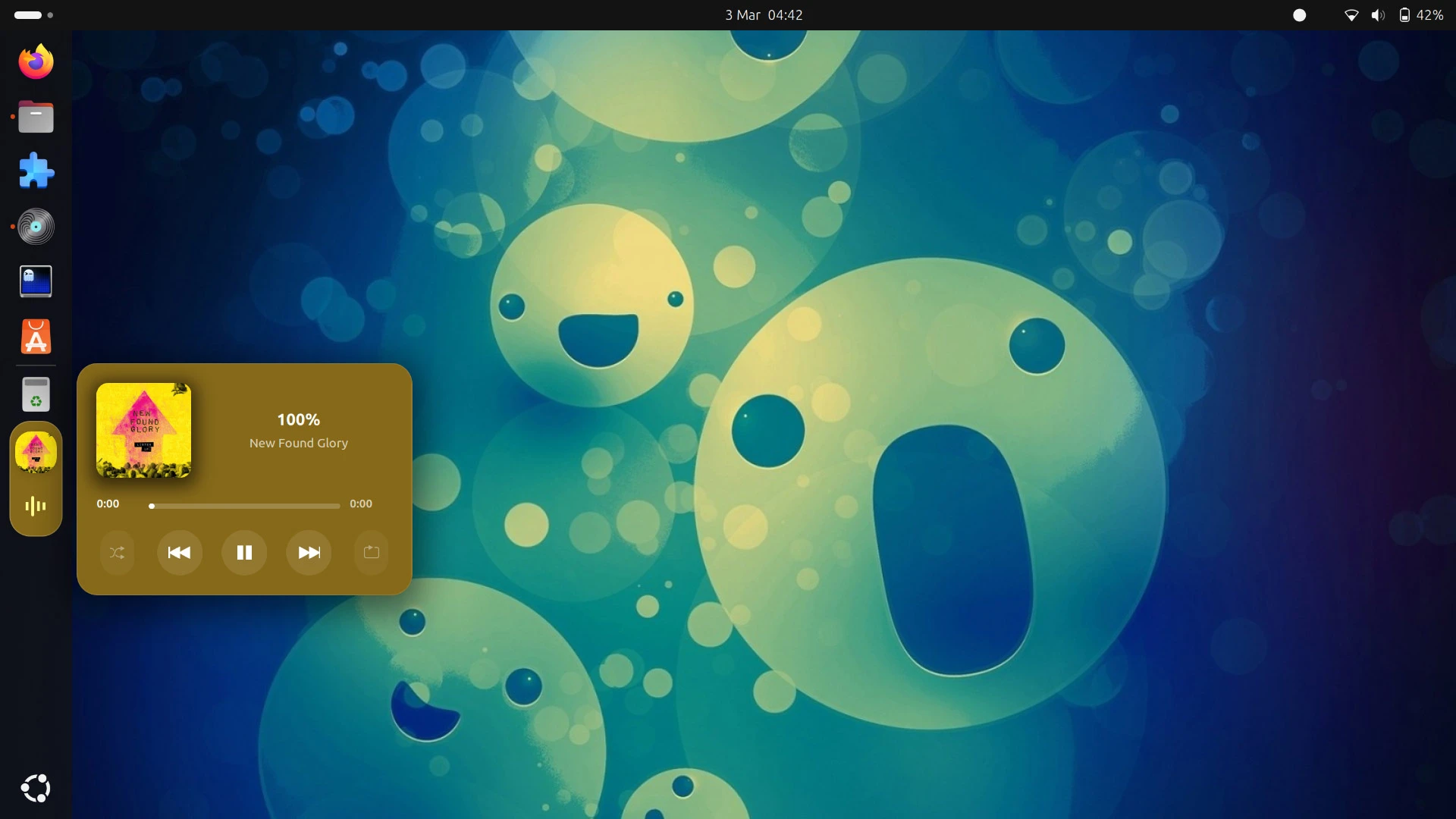
To choose where the pill appears, open the extension’s Preferences, go to the Style & Layout tab and find the Position section. Set ‘Container Target’ to ‘Panel’ for the panel, etc. You can also its location in the panel (left, centre or right) and index (position among other applets).
Install Dynamic Music Pill on Ubuntu
Dynamic Music Pill is compatible with GNOME 45-49, so if you’re reading this on Ubuntu 24.04 LTS or later you can try it out. The source code is up on GitHub. You can install it from the GNOME Extensions website (easier to do via desktop Extension Manager app, fwiw).