




Tab groups are a nifty productivity feature already available in web browsers like Google Chrome and Vivaldi — now they’re coming to Mozilla Firefox.
Except, that isn’t news, is it?
Mozilla announced a series of major new features coming to Firefox in the next 12 months, including long-requested features such as native profile management, an option for vertical tabs, and a more intuitive URL bar search experience, and tab grouping.
However, Firefox’s new tab groups feature is not yet enabled out-of-the-box in the latest stable builds of the browser, nor is it offered easily activated through Firefox Labs (as other experimental features are, like the new auto-open PIP behaviour).
But if you have upgraded to Firefox 133 you can enable tab groups and try it out today — just keep in mind it’s not enabled by default for a very good reason: it’s not finished!
Fancy testing it out?
How to Enable Tab Grouping in Firefox

Firefox’s tab groups work similarly to that offered by Chromium-based browsers like Vivaldi, Microsoft Edge, and Google Chrome. You create tab group(s) directly from the tab bar, give it a name and colour, and then add tabs to a group based on need, theme, or task.
And, of course, creating a “catch all” group to hide those tabs you can’t remember why you need open, but don’t want to close yet…
The feature allows you to:
- Create tabs groups and give them descriptive names
- Set a tab group colour for visual differentiation
- Expand/collapse groups on click
- Restore tab groups between sessions
To try tab groups in Firefox early you must be using Firefox 133 (or above). If you’re not sure which version of Firefox you have go to the menu, help, then open the About Firefox dialog to check.
Once done, do this:
- Open a new tab
- Enter
about:configin the address bar and - Agree to the “be careful” warning
- Type
tabs.groupin the search field presented - Find the
browser.tabs.groups.enabledpreference - Click the toggle at the end (to flip the value to
true)
While restarting Firefox is recommended, it’s not actually needed. You will be able to immediately right-click on a tab to see the new ‘Add Tab to New Group’ option, like so:
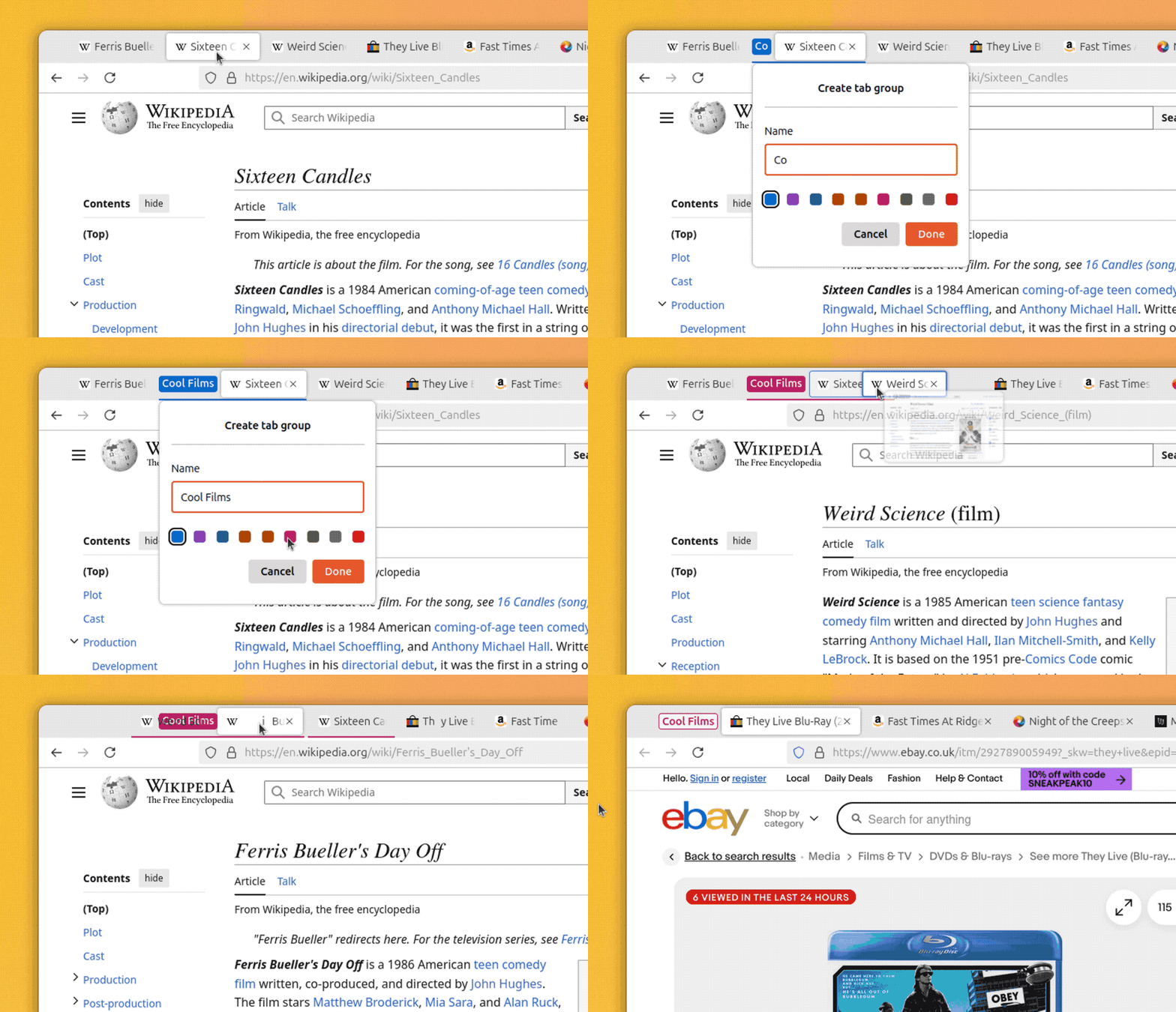
Pretty neat.
You can create a new tab group at any time, from any tab: right-click on a tab, select ‘add tab to new group’, give your group a descriptive name, assign a colour (for visual differentiation), and away you go!
You can add an open tab to an existing group in 2 ways: drag and drop the tab into the group; or right-click on the tab you want wish to add to the group and select the group from the list shown.
You can move a tab from a group in 2 ways: drag it out; or right-click and choose ‘remove from group’.
More features will be added in time (like being able to re-order groups, and save them) but even in this formative state it’s working well enough for basic use cases.
Although…
Keep in mind that tab groups is not finished and is not intended for everyday users at this point (hence being a hidden setting). There WILL be quirks, crashes, and bugs — to get you going with bugs, try pinning a tab outside of a group and see what happens!
If you experience issues with tab grouping enabled you can disable it the same way you enabled it but this time click the toggle in the browser.tabs.groups.enabled row to flip the value to false.
Anyhow – if you’re interested in testing it out early, go give a try. Just remember to pop back to let me know what you think of it, yeah?