



Do you want to try the latest Thunderbird 128 release but don’t want to use the snap package available in Ubuntu?
Your first thought might be to run sudo apt install thunderbird to install the DEB version of Thunderbird from the Ubuntu 24.04 LTS repos.
But like Firefox and Chromium, the Thunderbird DEB package in Ubuntu 24.04 LTS is a transition package. When you install that package it installs the Thunderbird snap (and reinstalls snapd, if that has been removed).
So in this guide I’m going to show you how to replace the Thunderbird snap with a DEB version from the Mozilla Team PPA (or Linux Mint) – but be aware you can’t just add the PPA and be done, you must set priority to avoid package conflicts/overwriting.
Do you need the Thunderbird DEB?
The official Thunderbird binary runs independently of and alongside the snap version. You download the binary archive, extract, move it (often to /opt), create a desktop launcher, and you’re done. Like the Firefox binary build, it offers in-app updating.
Snaps are great, and millions of people use them with few if any issues. Those looking to avoid snaps because of what ‘influencers’ on Reddit and YouTube say ought to try and make up their own mind first.
That said, there are a number of reasons why people can’t or don’t use snaps: integration issues (software or hardware), disk space concerns1, significantly larger download sizes, lack of GUI controls for choosing when things update, and many snaps being unofficial/unverified builds.
It doesn’t have to be an all or nothing situation, though.
My internet access is via a capped data plan so, for example, the massive download size of the LibreOffice snap means I use DEB version instead. But when the size difference isn’t an issue and the package is verified, I’m happy to use snaps.
But if you do need/want Thunderbird DEB, here’s how.
Install Thunderbird DEB on Ubuntu 24.04
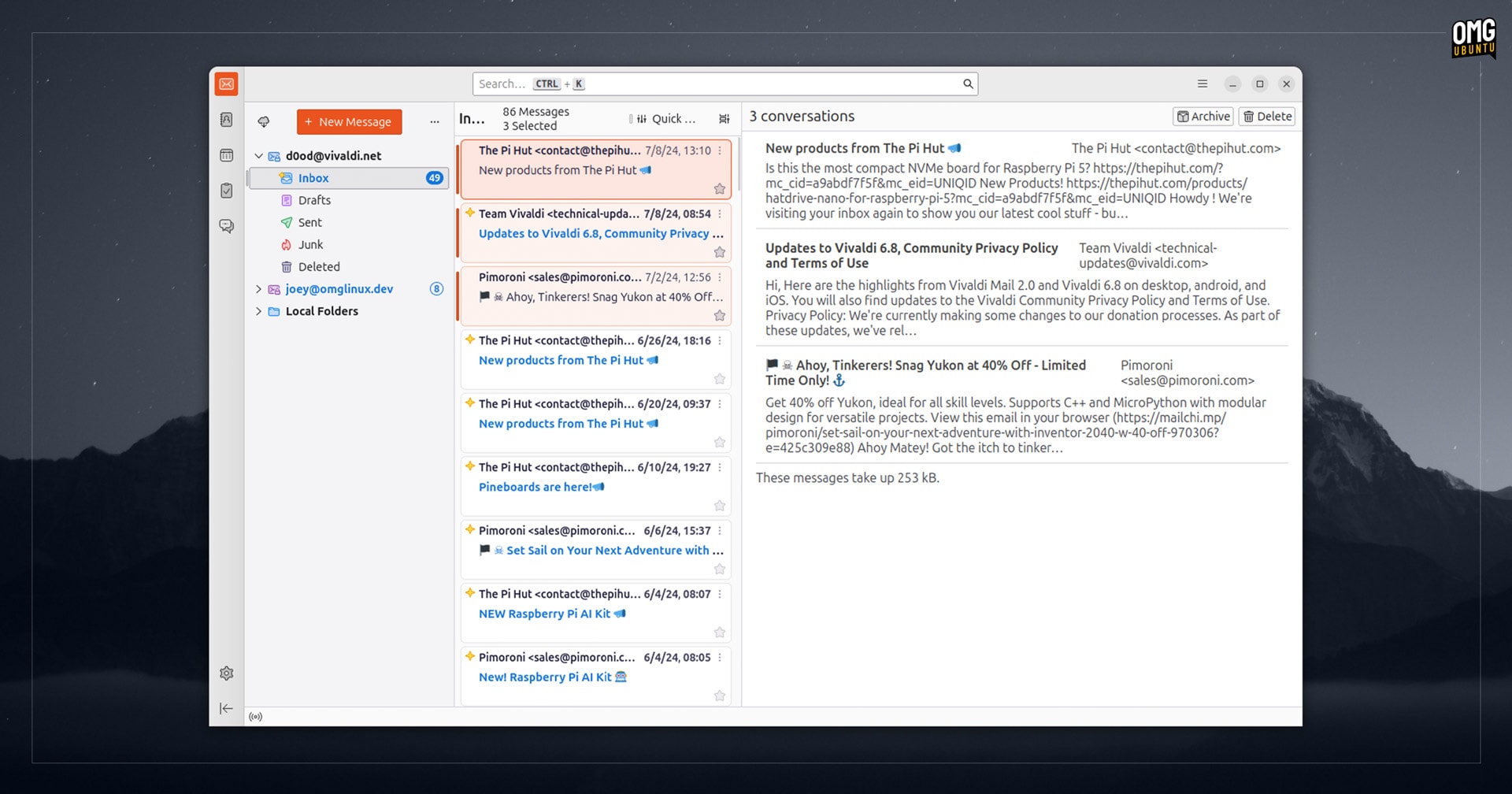
If you installed Thunderbird OR selected the expanded option when installing Ubuntu 24.04 LTS, the Thunderbird snap will be installed. You should uninstall it before continuing (technically, you don’t need to, but you’ll end up with two Thunderbird launchers).
The process:
- Uninstall the Thunderbird snap
- Uninstall the Thunderbird DEB wrapper
- Add the Mozilla Team PPA2
- Set PPA priority (prevents the snap wrapper being installed)
- Install Thunderbird DEB
- Prevent Unattended Upgrades from reinstalling the snap
Sound good?
Step 1 & 2: You only need to do this if the Thunderbird snap is installed.
Before you proceed, back up any important data or settings prior to remove the snap (unless you’ve not used it, in which case don’t). When ready, open a new Terminal window and run:
sudo snap remove --purge thunderbird && sudo apt remove thunderbird
Step 3: Next, run the following command to add the Mozilla Team PPA to your list of Software Sources:
sudo add-apt-repository ppa:mozillateam/ppa
Step 4: Now for the complicated bit!
You need to set the PPA priority higher than the the Ubuntu repos. This is because Ubuntu is configured as such to assume the the snap wrapper version is newer than the one in the PPA you’ve added.
So pinning the PPA ensures Ubuntu won’t upgrade using the Thunderbird DEB (aka snap wrapper) from the repos.
Any text editor (including command-line ones like vim or nano) can be used to do this step. I’m going to use GNOME Text Editor:
sudo gnome-text-editor /etc/apt/preferences.d/mozillateamppa
Wait for the window to open (when run as sudo I often notice there’s a slightly delay), then paste in the following 3 lines (only):
Package: thunderbird*
Pin: release o=LP-PPA-mozillateam
Pin-Priority: 1001

Package: thunderbird*
Pin: release o=Ubuntu
Pin-Priority: -1
The top 3 lines tell your system to give priority to the thundebird DEB in the Mozilla Team PPA. The bottom 3 lines tell you system to avoid installing the thunderbird DEB in the Ubuntu repositories (which will reinstall the snap).
Save you changes, then close the app — you did hit save, right? Maybe check…
Step 5: Now, update your package lists and install Thunderbird from the Mozilla Team PPA:
sudo apt update && sudo apt install thunderbird
Step 6: Do you have unattended upgrades enabled (i.e., Ubuntu automatically checks for, downloads, and installs updates on your system from the Ubuntu repos)? If so, the Thunderbird snap may magically reappear.
This is because (like pinning) Ubuntu assumes its own DEB/snap wrapper is the newest version, irrespective of whether it is, and irrespective of your pin priority. You can disable/turn off unattended upgrades to avoid reinstalling the snap.
Alternatively, run this command (don’t replace ‘distro_codename’). It tells your system to not auto-upgrade Thunderbird package from its the Ubuntu repo, but only the Mozilla Team PPA: –
echo 'Unattended-Upgrade::Allowed-Origins:: "LP-PPA-mozillateam:${distro_codename}";' | sudo tee /etc/apt/apt.conf.d/51unattended-upgrades-thunderbird
That’s it; you have installed Thunderbird as a DEB in Ubuntu 24.04 LTS. Future app updates will come through the regular Software Updater tool.
If you later change your mind and want to “undo” the changes above remove the Mozilla Team PPA using PPA Purge and remove the pin3. Ubuntu’s native Thunderbird package(s) then resumes priority.
Have fun!
- snapd keeps backups of earlier updates to enable ‘rolling back’ to an older build in the event that a new version doesn’t work correctly. For those with constrained storage space, backups for lots of large apps can build up – there are CLI controls to prune, but no GUI ones. ↩︎
- Maintained by Ubuntu developers ↩︎
- Deleting files from the command line is frowned upon, but you can do it manually by opening Nautilus as root, going to /etc/apt/preferences.d/ and trashing the ‘mozillateamppa’ file ↩︎