




Do you want to check your battery health in Ubuntu from the command-line, without needing to install anything extra to do it?
Well, you can.
Most of using Ubuntu on a laptop will monitor our battery level from the top bar (I always enable battery percentage in the top bar for at-a-glance needs), then dive into the Settings > Power panel for a lick more detail if/as/when needed.
However, those methods only show current battery level, i.e., how long until you need to recharge. They won’t tell you anything about the condition of your laptop battery.
Perhaps you’ve noticed your laptop needs recharging more often?. That’s usually a sign your battery is degrading. But how many charge cycles has it gone through? What’s its current capacity compared to when it was new1? Does it even need replacing?
To find out, you can open the Power Statistics utility app which Ubuntu comes with. This GUI lets you see charging history, power usage, and details on your battery, including valuable insights into its current condition, number of power cycles, and so on.
But if you spend a lot of time in a terminal (or you use a flavour that doesn’t include the Power Statistics app) you can see battery condition and other info from the command line.
Quick Comparison: Which Method is Right for You?
There are several command-line tools available on Ubuntu to check battery health. Here’s a quick breakdown:
| Method | Pre-installed? | Best For? | Output |
|---|---|---|---|
upower | Yes (most distros) | Detailed info | Clear |
acpi | No | Quick status checks | Minimal |
inxi -B | No | System-wide info | Comprehensive |
sysfs | Yes (it’s a folder) | Advanced needs | Raw |
This guide focuses on upower since it’s pre-installed on most Ubuntu systems and gives you the most useful information without extra dependencies. But we’ll mention the alternatives at the end.
Find Battery Capacity & Cycle Count from CLI
Using upower on Ubuntu

Using upower, we can check see the battery vendor, model number, and capacity info, including current max capacity, original max capacity, cycle count, time to empty, and how much power is getting drawn from the battery at the time the command is run.
- Open a new Terminal window
- Run
upower --enumerate - Copy the path printed for your battery (usually ends in
_BAT0) - Type
upower -iand paste the battery device path
My battery path is /org/freedesktop/UPower/devices/battery_BAT0, per the screenshot, so I run upower -i /org/freedesktop/UPower/devices/battery_BAT0 to glean more details about my battery.
What do the stats presented actually tell you?
The energy-full stat is the maximum charge the battery now holds, energy-full-design is the maximum battery capacity the battery was built to hold, and further down, capacity shows the difference as a percentage.
So in my screenshot you can see my laptop’s battery left the factory able to hold 53.9 Wh. Today, it only holds 38.8 Wh. Which makes the current capacity 71.9% of what it was when new (which for a 6 year old laptop isn’t bad going, I think).
If you’re interested in knowing your cycle count, check the charge-cycles section. This tells you how many times the battery has gone from totally empty to totally charged. In my screenshot, you can see that’s 194 times.
When does my battery need replacing?
Battery degradation is normal, and batteries are a ‘consumable’ element in any electronics device. The capacity they were sold with depletes the longer they’re used, but that depletion happens faster the more heavily they’re used (cycles).
If your battery lasts long enough to do what you need to do, don’t sweat it. But some generally-agreed thresholds to watch for, per manufacturers like Google and Apple:
- 80-100% capacity – ideal; no replacement needed
- 70-80% capacity – normal for a 3-5 year old laptop, no need to panic
- 60-70% capacity – time to start thinking about replacing if you need battery power
- Below 60% capacity – replacement is recommended
To prolong the life of batteries (i.e., slow the natural degradation) Google and Apple recommend to never let device power battery levels drop below 10, and try to not charge past 90%. Some newer laptops can do this automatically and support setting charge limits.
Other CLI options
Using acpi
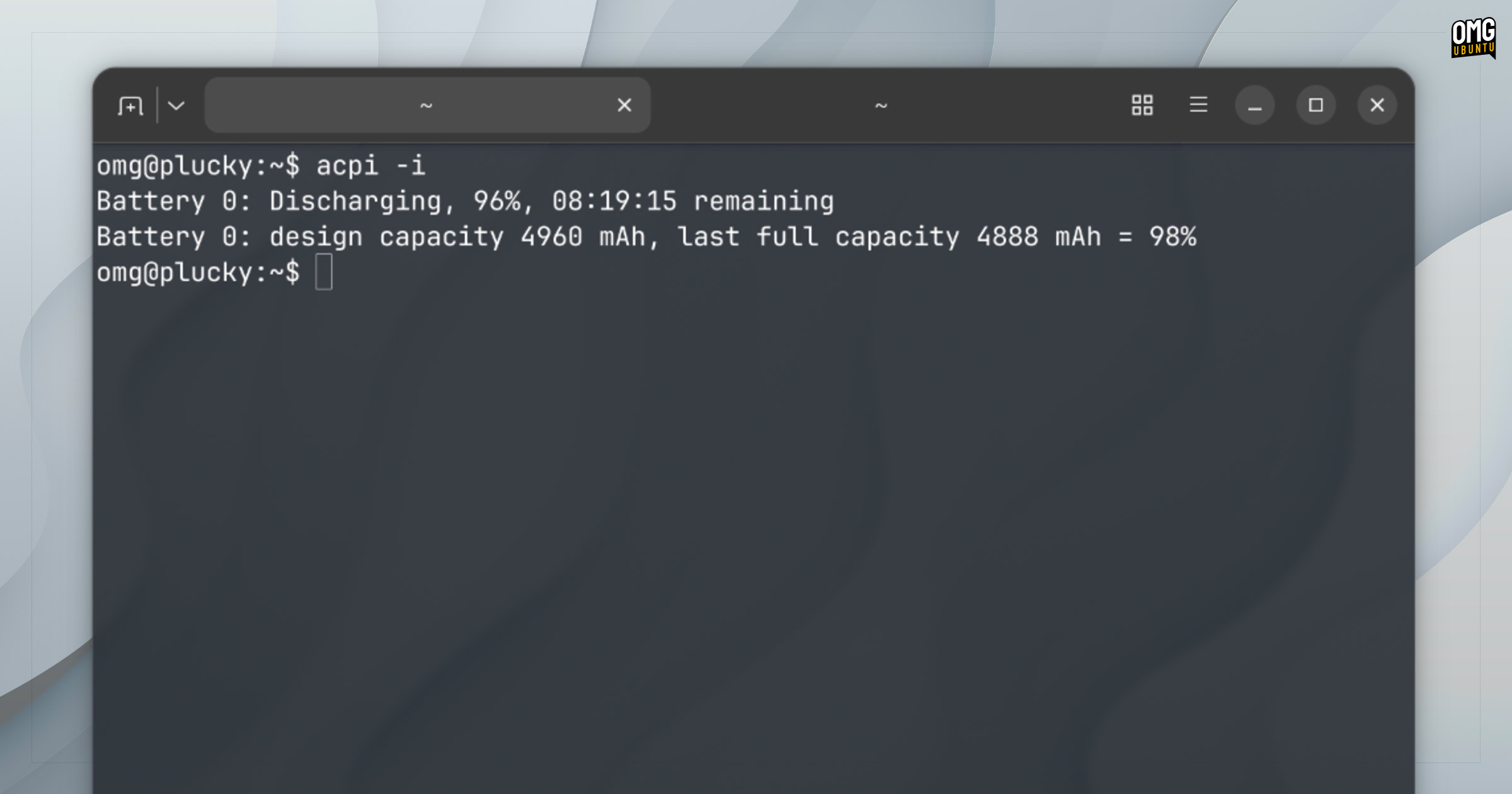
If upower isn’t available or doesn’t tell you what you need to know, acpi is worth trying.
The output is simpler than upower but it shows charging status and percentage immediately. You may need to install it first: sudo apt install acpi, then run using acpi -I.
Using inxi
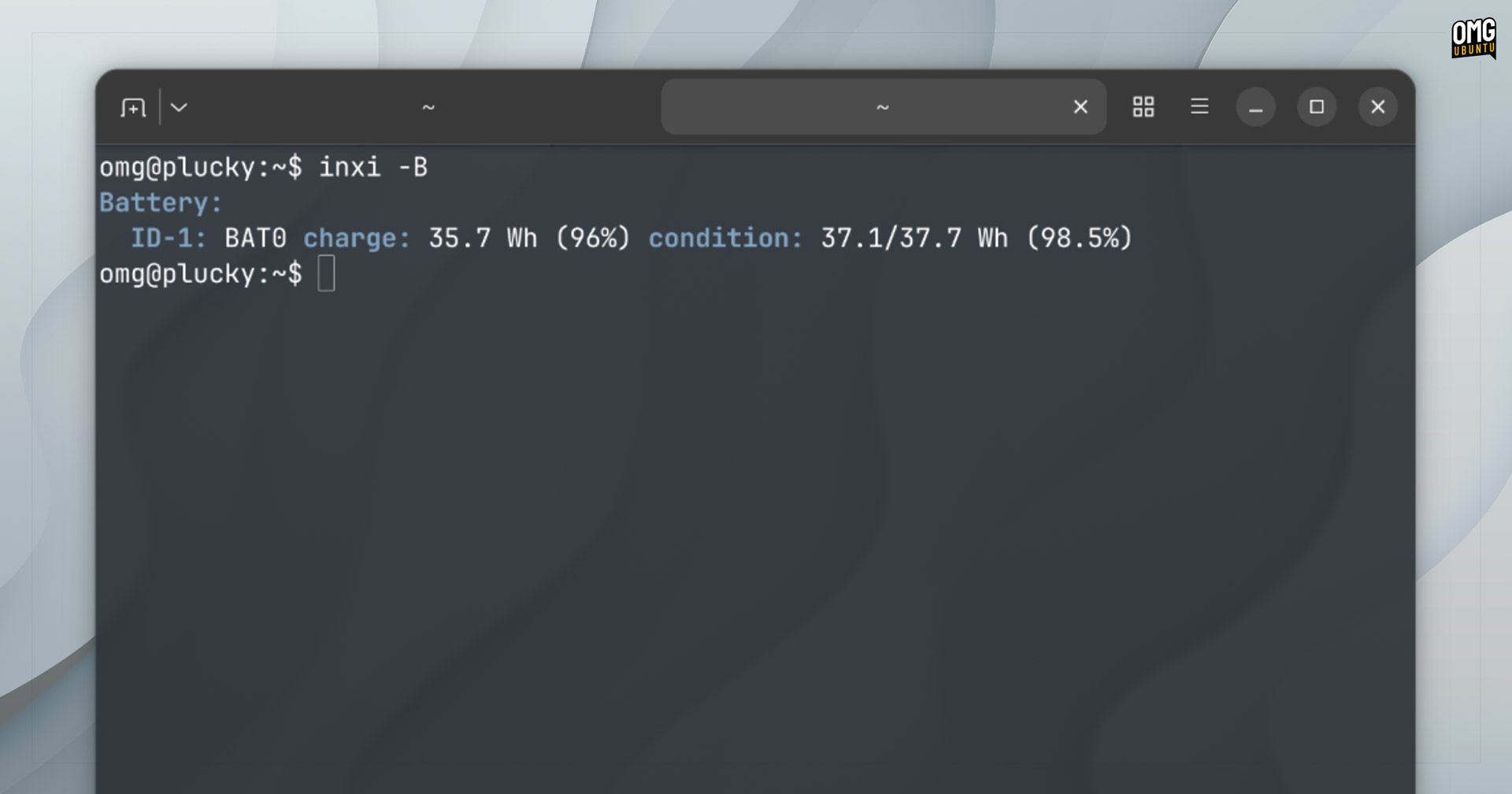
The inxi system information tool includes battery details alongside other hardware and power details you have installed. You can install it on Ubuntu with sudo apt install inxi, and run using inxi -B to see battery only.
Using the file system
Want to avoid installing anything? The Linux kernel exposes battery info directly, which you can probe using the following commands — replace BAT0 with BAT1 if nothing appears:
cat /sys/class/power_supply/BAT0/capacity
cat /sys/class/power_supply/BAT0/energy_full
cat /sys/class/power_supply/BAT0/energy_full_design
This method is available without any fuss, but the output is “raw” values.
GUI options exist too
That’s how to check your battery health, current battery capacity, and cycle count from the command line on Ubuntu using upower. This guide is specifically written for those who want to get this info from the command line, not a GUI app.
There are various other ways to get battery information on Ubuntu, and the GUI Power Statistics app Ubuntu includes, which I mentioned at the start, is arguably the most user-friendly of these and it shows you the exact same info.
Still, if you prefer the command line, or don’t have Power Statistics installed on your distro, you can get the pertinent power-related info in a clean, easily grep’d printout using the upower command above.
Over to you: what condition is your battery in and how long have you owned it? Share your stats down in the comments!
- Admittedly there is some contention over this, but battery manufactures and hardware vendors like Google and Apple recommend keeping battery levels between 10-90% (some OSes even have ‘optimised charging’ to delay charging past 80%). ↩︎