



A new GNOME Shell extension allows you turn any app in to a picture-in-picture window on the Ubuntu desktop.
You’re probably familiar with picture-in-picture mode (PiP) in web browsers as Mozilla Firefox and Google Chrome, as both let you to “pop-out” videos from sites like YouTube and view them as a floating thumbnail-size window.
Online video is where PiP excels. I can keep watching a YouTube video (or media on any supported site) while switching to a different app, allowing me to follow a video tutorial, e.g., ‘how to do cool thing in Krita’, in the app, without a browser in the way.
Well, take that idea and apply it to any app you use on your desktop — that’s what the WTMB (Window Thumbnails) GNOME Shell extension does.
Once installed (and enabled) it lets you run any desktop app in picture in picture mode. A scaled-down thumbnail of the app window is shown on top of other apps that you’re using, ensuring the oh-so-important PiP is always in-view: –
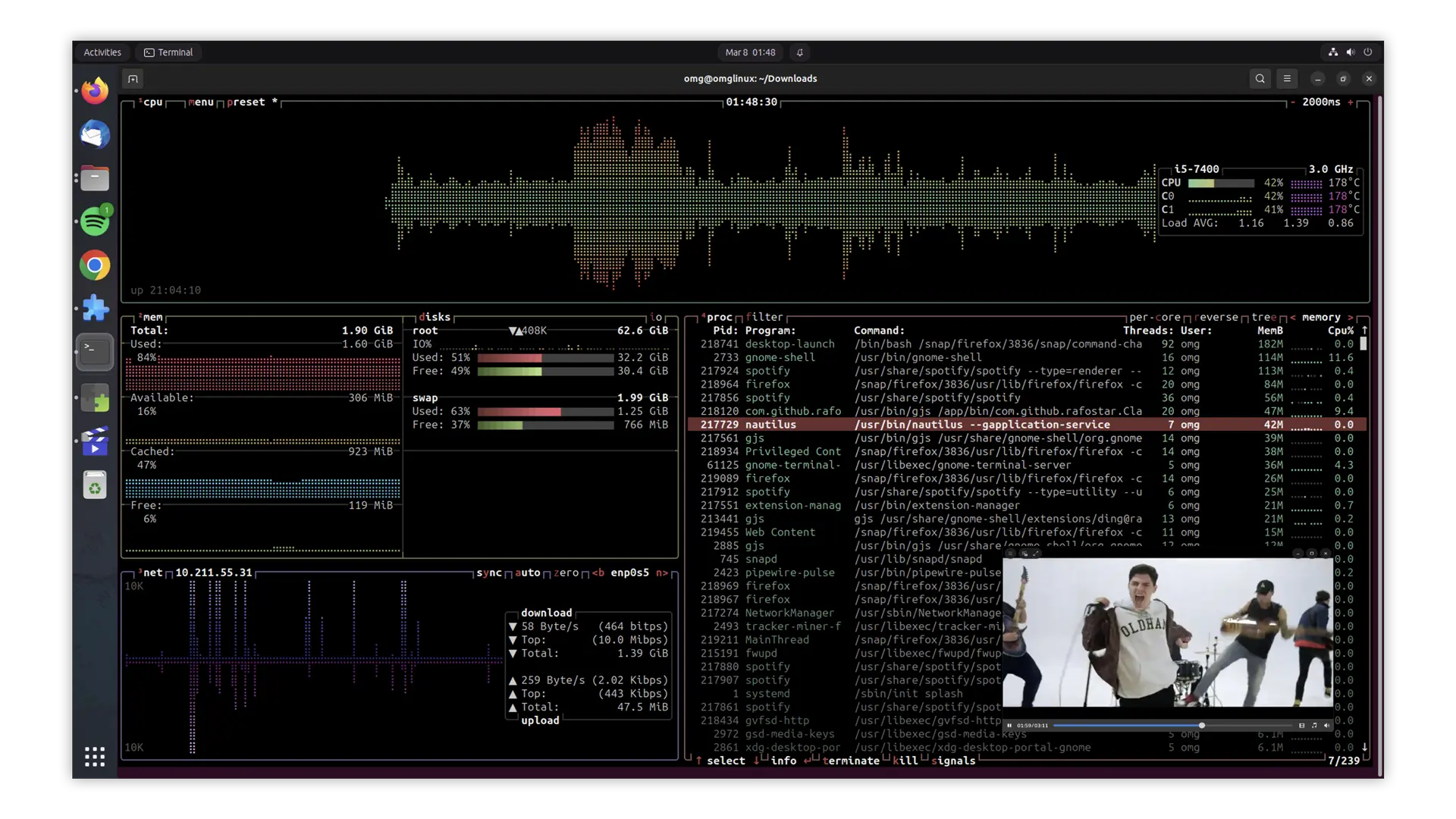
Using this GNOME Shell extension you could watch a local video as a PiP; keep an eye on a command line process/job; monitor a video call while working; view a web page (like a live blog, if those still exist), and so on.
The possibilities and uses for this extensions are as varied as your needs and imagination: –
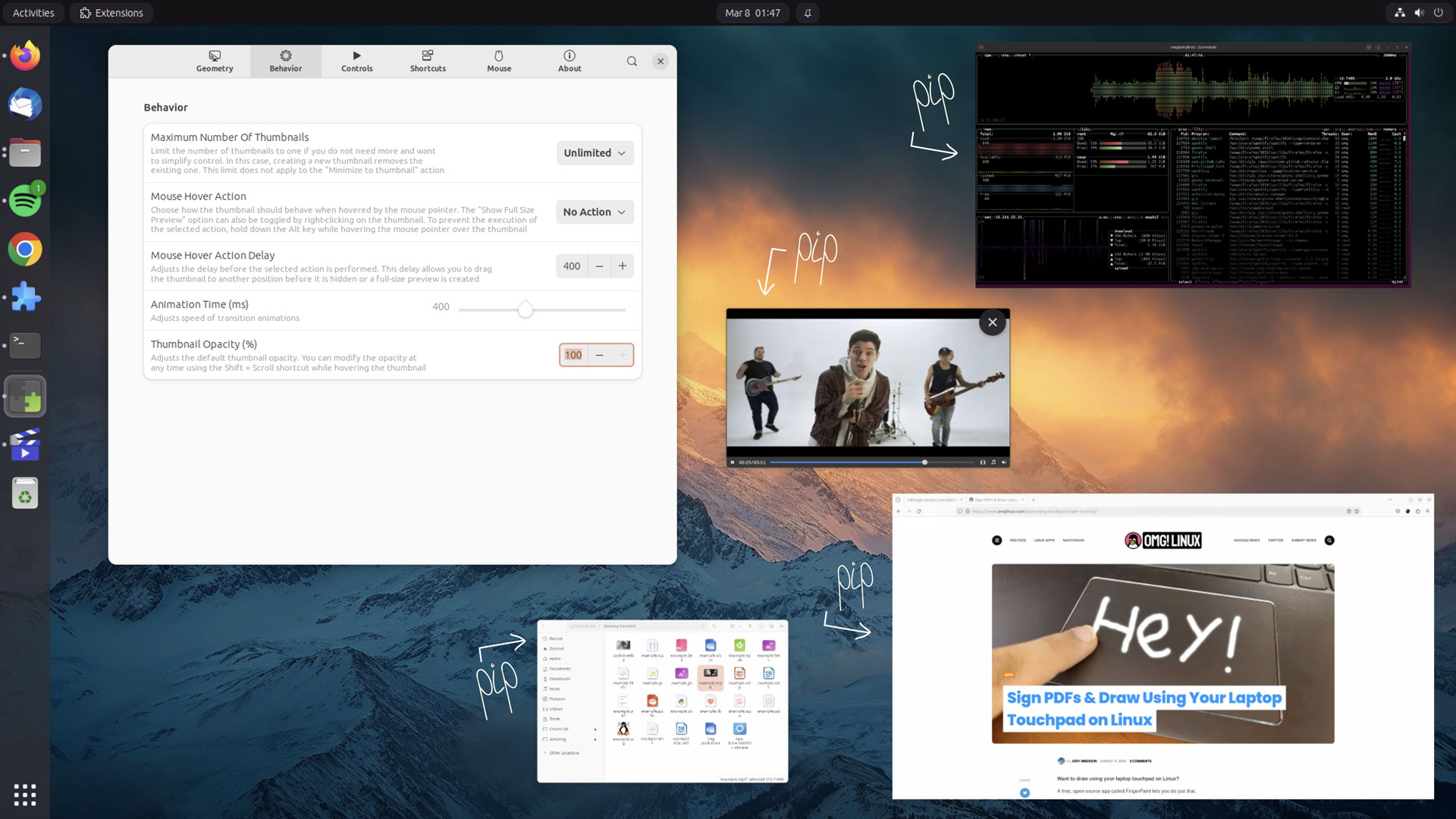
Some handy tips while to help using it:
- To PiP an app first focus it then press super + t
- To resize a PiP thumbnail hover over it and use your mouse-scroll wheel
- Click on a PiP thumbnail to view larger preview
- Double-click on a PiP thumbnail to restore the main window
Plenty of settings are available for you to tinker with, including options to set default thumbnail size, choose the position where new PiP windows appear, configure hover/click actions, customise keyboard shortcuts, and more — and future updates will likely expand this further.
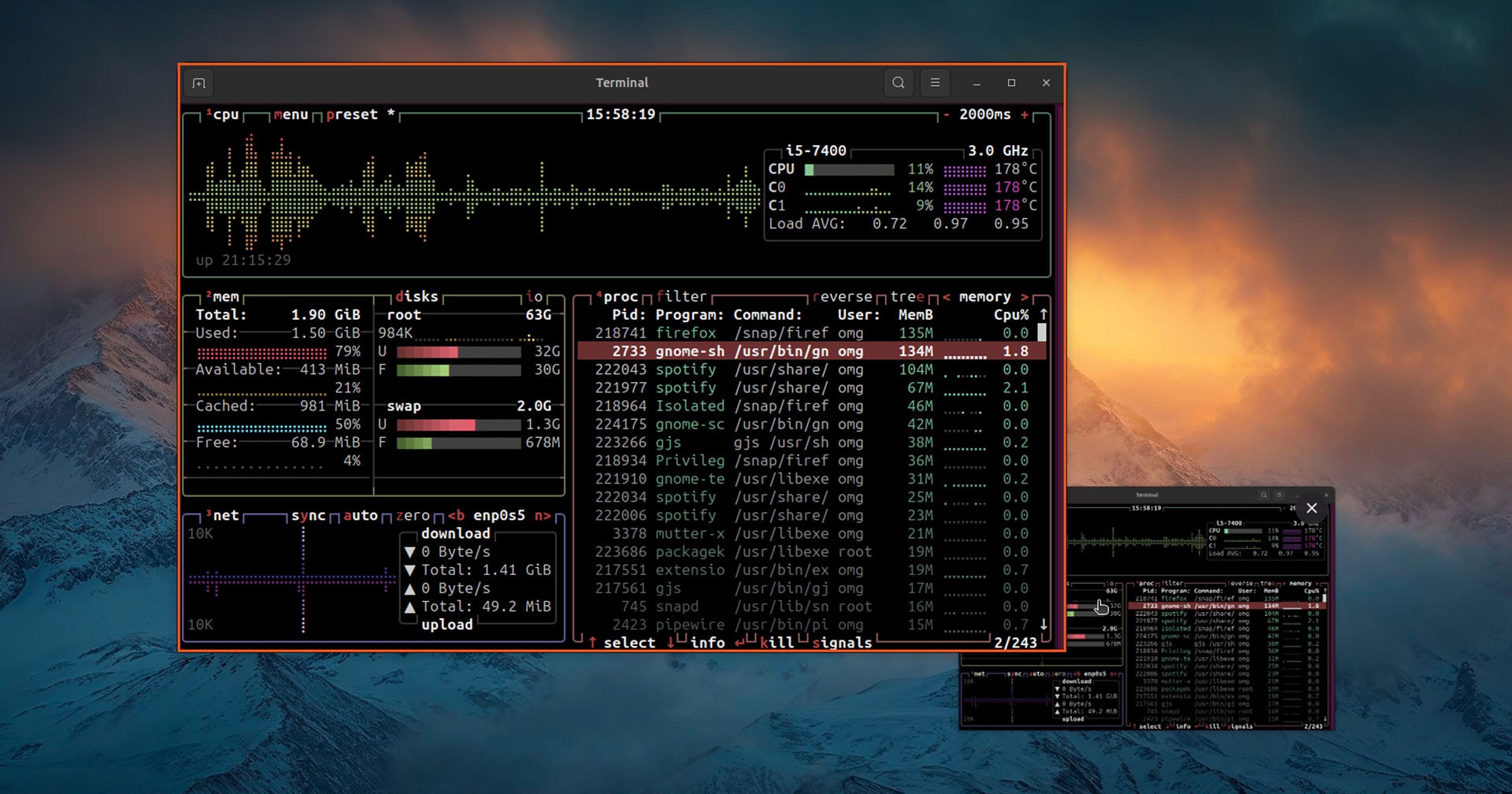
So that’s the WTMB (Window Thumbnails) GNOME Shell extension in a nut, er, shell. Report bugs, suggest improvements, or contribute code via this extension’s Github page.
You can get this add-on from the GNOME extensions website via a compatible web browser or, for an easier life, install it from the Extensions Manager desktop app (which is available in the Ubuntu repos). Search for ‘WTMB’, find the result, click install, and away you go.