


Look, I’m not saying the expansive sold block of colour that greets me at the Ubuntu login screen is bad, but it’s not really me.
I’ve not hitherto bothered to look at how to change Ubuntu’s login screen background because, to be blunt, I see it for all of 3 seconds—well, a little longer than that if I typo my password (which, obviously, is quite often).
Basically, Ubuntu’s login screen is not something I, nor you, look at long enough to care about prettifying.
–Right?
This evening curiosity got the better of me. I was a bored of seeing a solid block of aubergine/grey (depends on which version of Ubuntu you use) shown by the GDM (GNOME Display Manager) greeter.
To my surprise, changing the background is …Not that easy to do!
Ubuntu’s old login manager LightDM made it easy to change the background image in a couple clicks. GDM is a tougher nut to crack as the GNOME desktop devs don’t provide an obvious GUI method to change it.
You can change Ubuntu’s login screen background but you need to roll up your sleeves to do it. And if you’re currently sleeveless? Put a shirt on weirdo, then then come join me!
Change Ubuntu’s Login Screen Background

My aim is to change the solid block of purple above to something that looks more like my actual Ubuntu desktop, which is this:

Ideally, I want something that looks as schmexy as the Lock Screen, which adds frosted blur allure atop the desktop background:

—Mmm!
To get going, I’ll using a script created by GitHub user ~PRATAP.
Now, I know what you’re about to say: using a random script from the backend of the interweb and letting it fondling sensitive parts of my system is a Not Very Clever™ thing to do dot inc.
But I’m smart[citation needed] and did give the script a look over BEFORE I ran it. You should too as I can’t guarantee the script won’t change between the time I looked at it and the time you do.
To download this GDM background changer script from the terminal use wget like so:
wget https://github.com/PRATAP-KUMAR/ubuntu-gdm-set-background/archive/main.tar.gz
Download complete, extract/unpack the .tar.gz —Tarbell? Tarball? I can never remember— using your file manager, an archive utility of your choice, or even the command-line itself.
Inside the extracted folder is another folder. Inside that folder is the script itself plus a comprehensive README file to talks us through its many options:
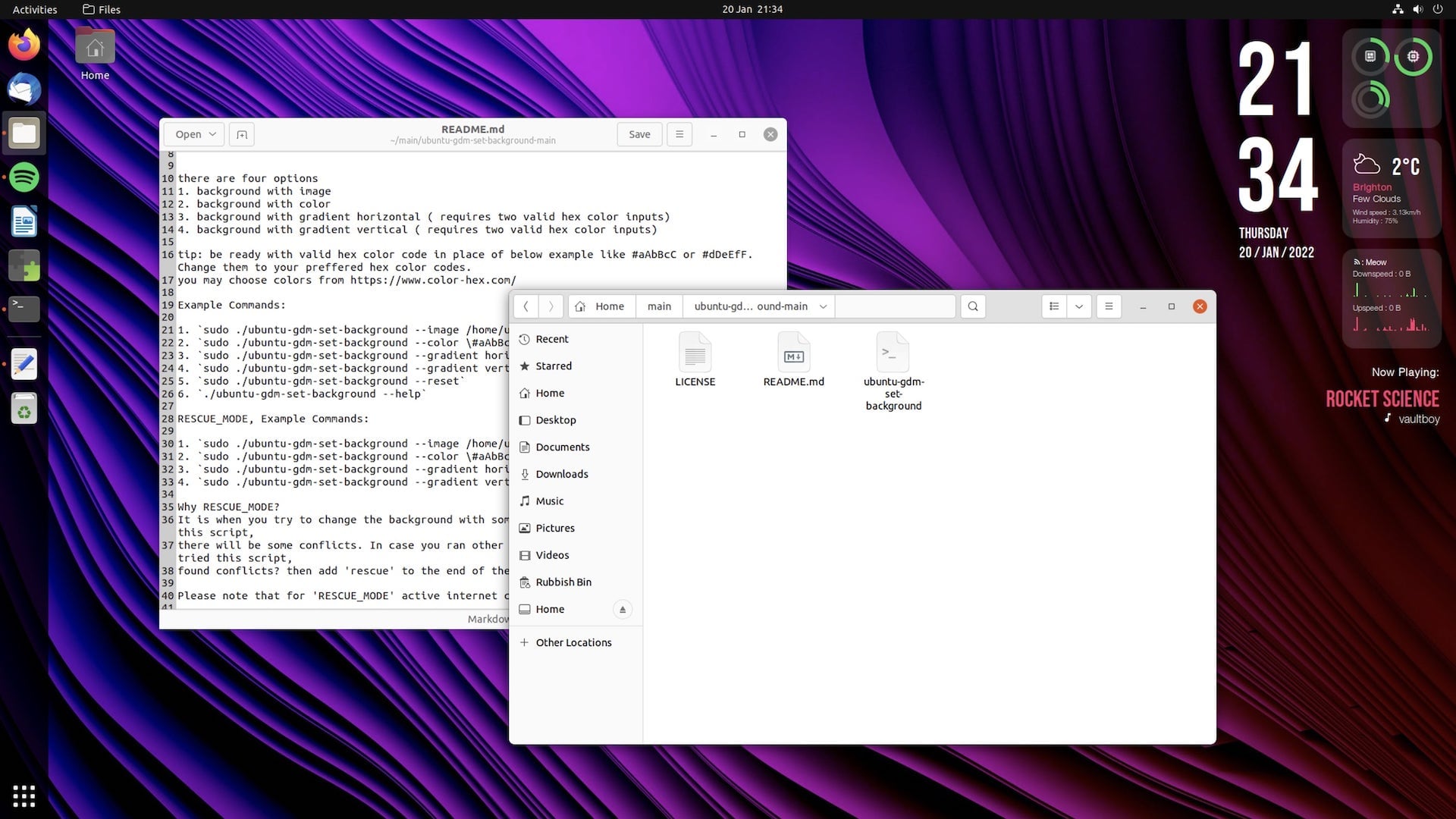
I’ll start by setting the Ubuntu login screen background to the same .png image I use as my desktop wallpaper.
If you only want to change the login screen colour (or set a gradient) then the included README file runs through the options.
As I know the path to my background wallpaper it’s a case of switching back to the terminal, using cd to enter the downloaded script directory in a terminal, then run the script (as sudo – eek) and passing it the location of the image I want to use:
cd ~/main/ubuntu-gdm-set-background-main
sudo ./ubuntu-gdm-set-background --image ~/Downloads/mywallpaper.jpg
A few blinks and one logout later I see this:

Nice, but not what I wanted. The image is super sharp. Were it a tad busier it would be hard to ‘see’ the login pod (which is probably why the login screen uses a plain colour by default).
I want something more akin to the blurred effect the lock screen uses.
The quickest way to achieve it is to fork GDM and patch in custom blur code I found on the inside of an abandoned packet of—Just kidding: I’ll open the image in an image editor (The GIMP), apply a Gaussian blur filter effect, save, then set that image as the login screen background.
It took me roughly 5 minutes to find a blur level I liked. I exported the image, then applied it as before through the script:
sudo ./ubuntu-gdm-set-background --image ~/Downloads/mytweakedwallpaper.jpg
Next I hit ctrl + alt + f1 to see how it looks in situ:

Oh yes —this, my compadres, is what I set out to achieve.
Awesome stuff.
Setting a gradient not an image
I’m curious how good this script’s gradient support I’m going to try and apply the “disco” gradient from the [edit: now old] header of omg! ubuntu! as the login screen background.
But there’s a small problem: the gradient we use on omg! is composed of three colour stops but the README for this script only shows an example that uses two colour stops.
Will three work? Let’s see…

At first glance you might think it worked. This is indeed a gradient going from purple to orange.
However: I’m pedantic about my own site’s branding; I know that this gradient is not the one I wanted to apply. The script only used the first two hex values I passed in command, not all three.
Which is a bit of a bummer as the proper gradient would’ve looked cool.
There are other gradient limitations in this script. You’re limited to only horizontal or vertical gradients, i.e. linear, so you can’t use alternative angles or a radial gradient (which would look especially good on Ubuntu’s login screen given the centralised placement of the login pod).
So I’m going back to the blurred purple image instead.
If you find you can’t create the gradient you’d like using this script then you could create it in an image editor like The GIMP at your screen’s resolution, export the image, and set it as your login screen background.
Undoing the changes is easy, btw
I’ll end this (phenylephrine-fuelled) post on an undo; here’s how to reset the Ubuntu GDM login screen back to its default colour.
This is super easy because the script I’ve been using has a --reset option to do it! When run, it does what you’d hope it does:
sudo ./ubuntu-gdm-set-background --reset
So that’s it.
You’ve seen how (relatively) easy it is to change the Ubuntu login screen background, be it by setting a specific login screen image or photo, colour or gradient. Plus, it’s easy to undo the changes when you get bored of your custom creations!
h/t Scott