



If you’re looking for a way to draw, doodle, and scribble on your Ubuntu desktop, there’s a new GNOME Shell extension that lets you do precisely that: draw on your screen.
Why would that be useful (besides the obvious fun of infantile graffiti)?
You may want to point out a bug, highlight something during a livestream, or provide help to someone through an annotated screenshot (without the hassle of installing a screenshot markup tool).
It’s those kind of use-cases that the Draw on Your Screen GNOME extension is designed for.
Why draw on your screen?
I think most of us don’t feel a compelling need to graffiti our screens. On the odd occasion we do, we’d turn to a screenshot annotation app like Shutter or Flameshot, or go to the effort of using a full-blown image editor like GIMP to add some boxes and text.
But the suitably titled Draw on Your Screen extension for GNOME Shell can save you time. It lets you to markup elements on your display in-place, in-real time, and then ‘screenshot’ the result to save it. That’s fewer steps, all in.

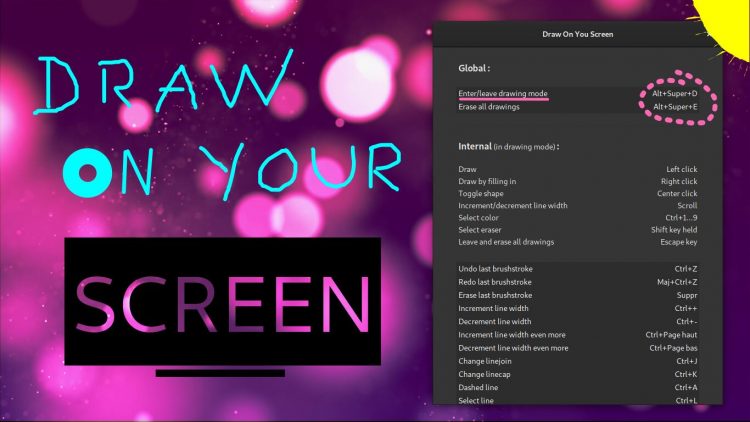
Draw on Your Screen provides a simple, straight-forward way to point at, call-out, circle, annotate and (literally) draw attention to anything showing on your Linux desktop – apps, videos, documents, anything.
Tools available in this extension:
- Shapes (rectangle, circle, etc)
- Lines (including variable thickness)
- Free-hand drawing
- Text (any font family, size, etc)
- Choice of colours
The add-on supports undo/redo, offers a smooth stroke option, persistence (so you can keep adding to your design masterpiece), and supports multi-monitor set-ups.
Once installed, you press the super + alt + D key combo to trigger screen drawing mode, select a tool, and begin adding elements.
To save a sketch or scrabble just take a screenshot (using a specific app or by pressing he prnt scrn button.
You can also export drawings directly from the app, as an SVG file — perfect for saving a particularly superb sketch!
‘Draw on Your Screen’, for all its garish novelty, simplifies the process of annotating a screenshot. It’s like Epic Pen for Linux; you can literally draw, type or call-out whatever is on your screen and then take a screenshot of your scribbles.
There are other ‘write on screen’ apps available for Linux, but few are as frictionless or as fun to use as this one is.
Install Drawing GNOME Extension
You can install Drawn on Your Screen on GNOME Shell 3.26 – 3.38 from the GNOME Extensions website. This version does not work with newer versions of the GNOME Shell desktop, and does not work with Wayland.
Assuming you have the relevant parts needed to install GNOME Extensions on Ubuntu head to the extension page listing below to get it:
A new version of this extension supports GNOME 40+ and Wayland. It’s made by the same developer as the one above, and has the same features, but is called Draw on GNOME.
Sadly, the new version is not yet available from the GNOME Extensions website, but you can install it manually (or run a simple script to automate it for you). For more details on how to do that – it’s not hard – refer to the project website.