


Typing accented characters on Ubuntu isn’t as easy as it is on macOS (or modern smartphone keyboards), where you just have to a key to see available characters appear in a pop-over, and then pick one.
Accent Hold is a GNOME Shell extension that adds macOS-style press-and-hold behaviour.
Just press and hold a letter key (e, c, etc) and accented variants and other diacritics (é è ê ë, ç ć č, etc) appear in a small pop-up, beside the text cursor. Press the matching number to pick a character, or use your keyboard arrow keys or mouse.

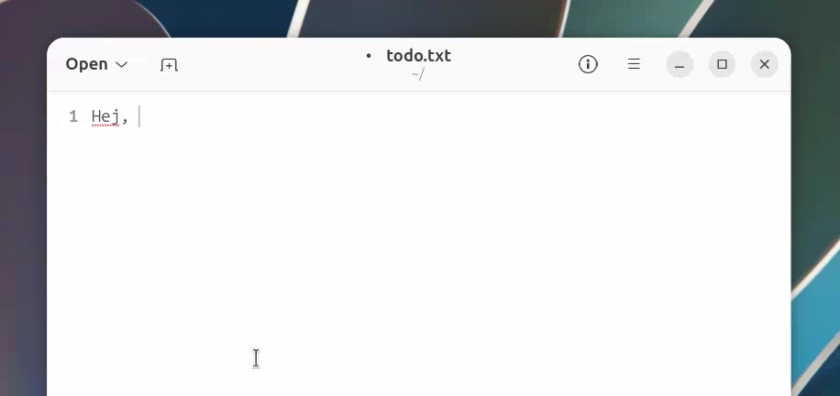
The default way to do it on Ubuntu is laborious.
Let’s say I want to type å. I need to press Ctrl + Shift + U, type in the 4 digit accent hex code, then press Enter to get an å. Or, I could set up the compose key in Ubuntu, press it and type a (marginally more memorable) compose key code for å.
A bit of a faff all told – with Accent Hold, I just press and hold the a key, then select the character I need, in this example the a-ring.
If, having pressed a key long enough to reveal the picker, I decide I don’t need an accented variant after all, a quick tap on the key as usual will enter the vanilla character.
It shouldn’t interfere with regular typing (though it does mean you can press and hold some characters to enter repeating letters). The developer of Accent Hold says it works with all keyboard layouts (QWERTY, AZERTY, etc).
Preferences hides an emoji cheat
You can choose how long you need to hold the key before the picker appears from the extension’s preferences panel, and set how long before it vanishes.
You can also edit the list of characters that appear for each key, removing the ones you don’t need, re-ordering or adding your own. You could, for instance, add emoji to a letter and have it appear in the picker alongside accents.
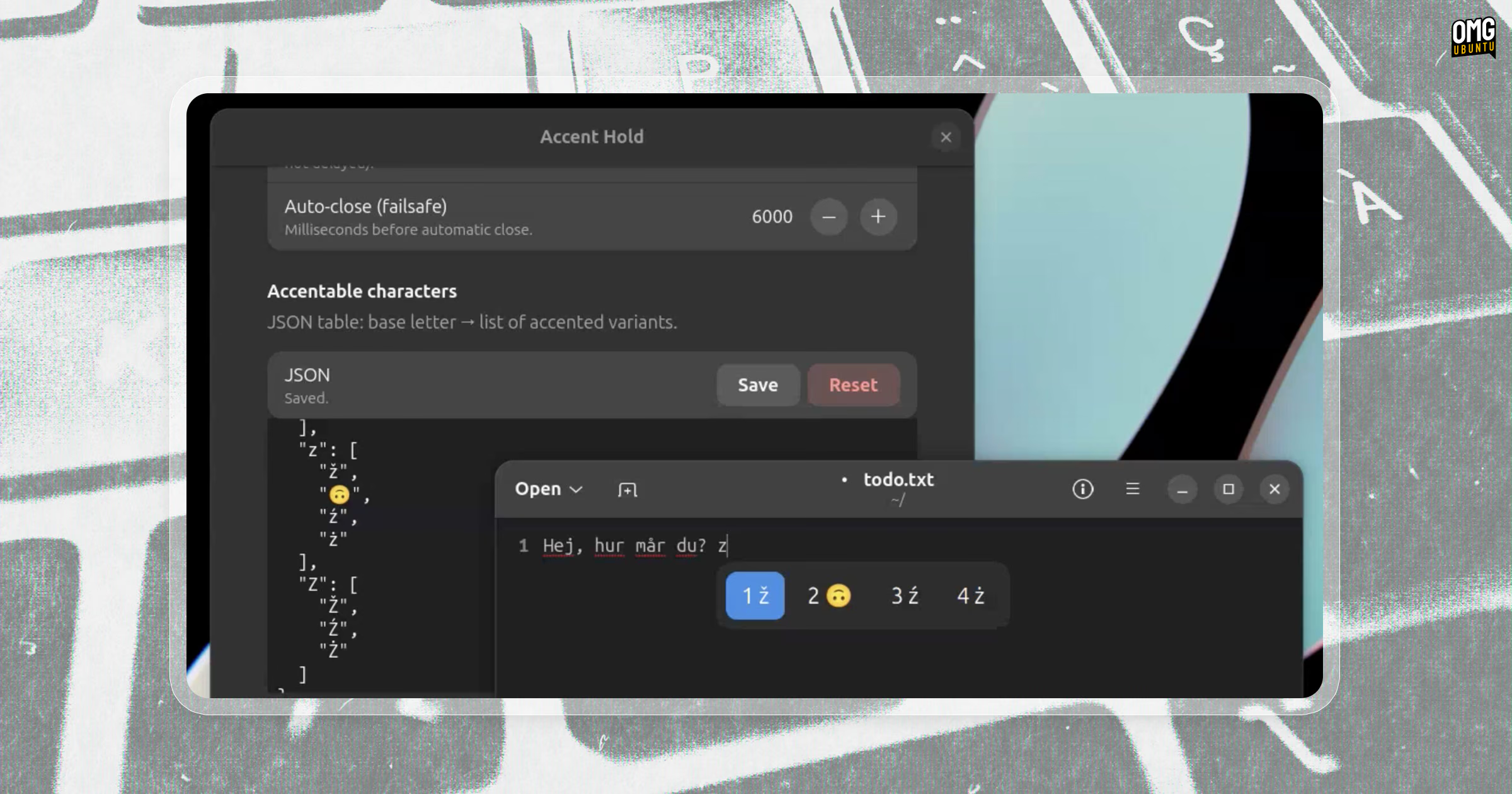
The extension only works on Wayland with apps that use GNOME input methods (which includes most things, including most Electron apps, Firefox, etc). If it doesn’t appear in some apps, like Qt ones, the shortcut Super + E will open the picker.
One small annoyance: it adds an icon in the top panel. Thought not redundant – it lets you disable the picker ad-hoc, and access the preferences dialog – having a random é in the top bar is somewhat distracting.
If you’re on GNOME 45 – 50, you can install it from the GNOME Extensions website (or skip the hassle and use the terrific Extension Manager app instead). An update is pending review that adds support for GNOME 51.