



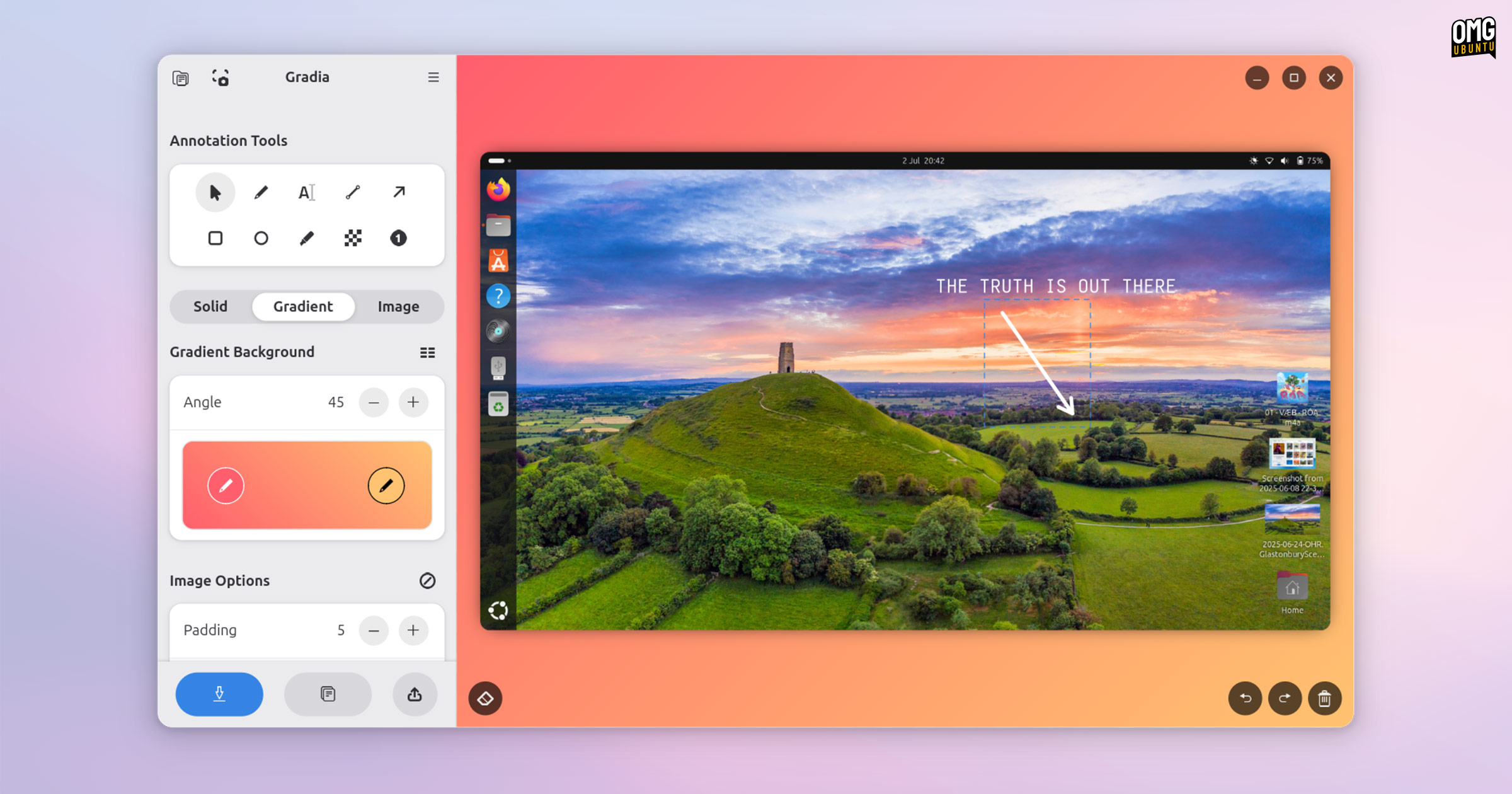
A glut of new features were added to Gradia, a Linux screenshot markup tool built using GTK4/libadwaita, since I last wrote about it a few weeks back.
Gradia was already a solid app with a focused feature set and a UI that, dare I say it, is delightful to use1, making it easy to add text to screenshots in Ubuntu along with arrows (great for bug reports). But it can open and work with any image file, not just screenshots.
Read on for a quick rundown of the cool new features Gradia’s developers have added in the latest release.
What’s New in Gradia?
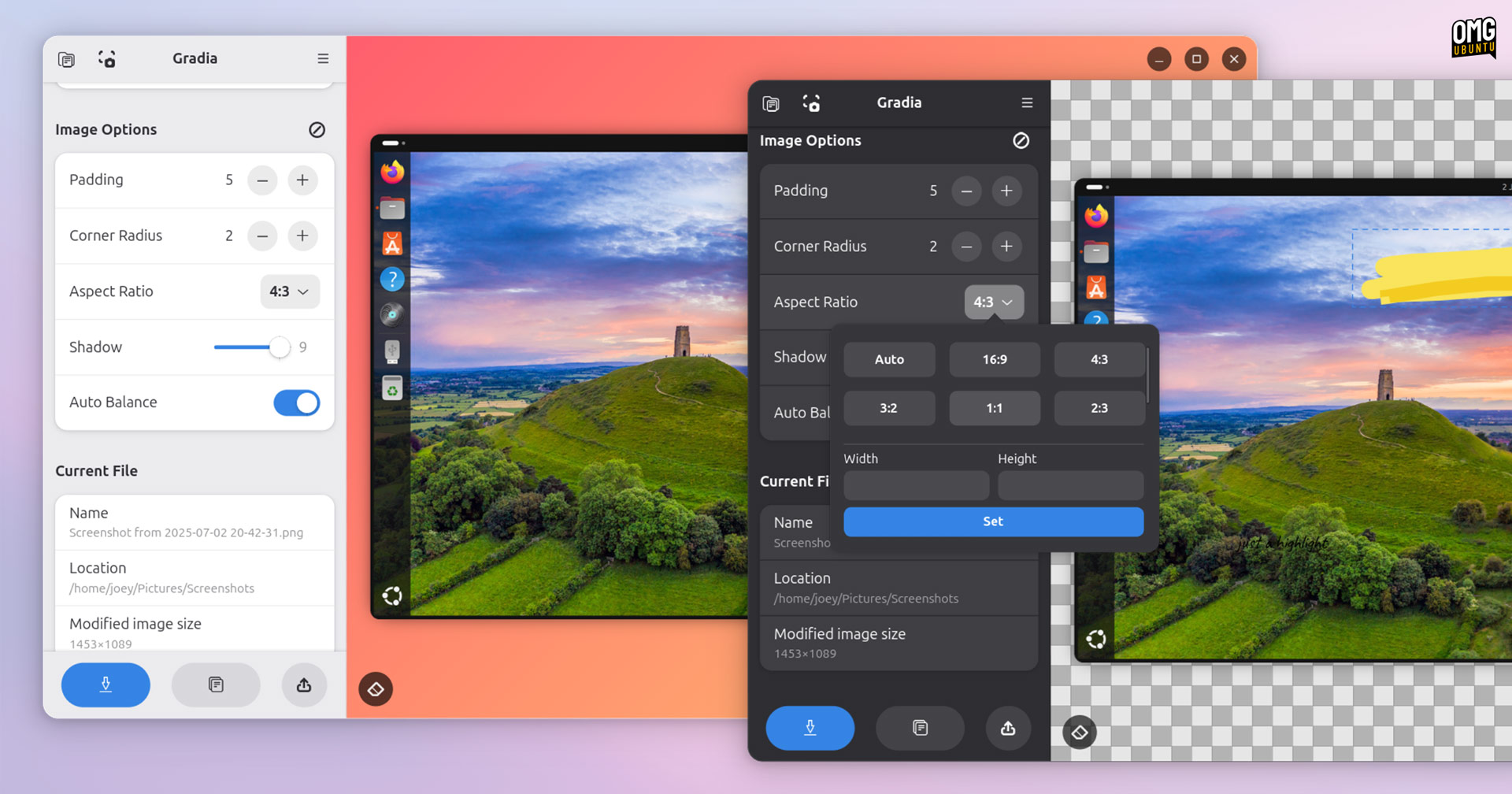
Gradia lets you place a screenshot on a choice of background, inset it with padding, define an aspect ratio, and add add curved corners. Annotation tools let you add text, call-outs, number stamps, and blur areas directly on the image. You can move elements around, re-edit, and save.
It can still do all that (phew), but now gives you greater control whilst doing it.
The text tool can now use any font installed on your system, which is great. This will allow for on-brand annotations by those using Gradia to create app store graphics, trend-specific fonts for meme-makers, and so on.
You can now add a background colour to to text (and the number Stamp tool). This should help in ensuring text is readable against a busy screenshot or background.
The Highlighter tool gains a pressure slider to draw lines with a designer ‘strength’, while the square and circle shape tools now let you adjust line thickness (they previously followed the thickness set in the ‘line’ tool, so are now adjustable directly).
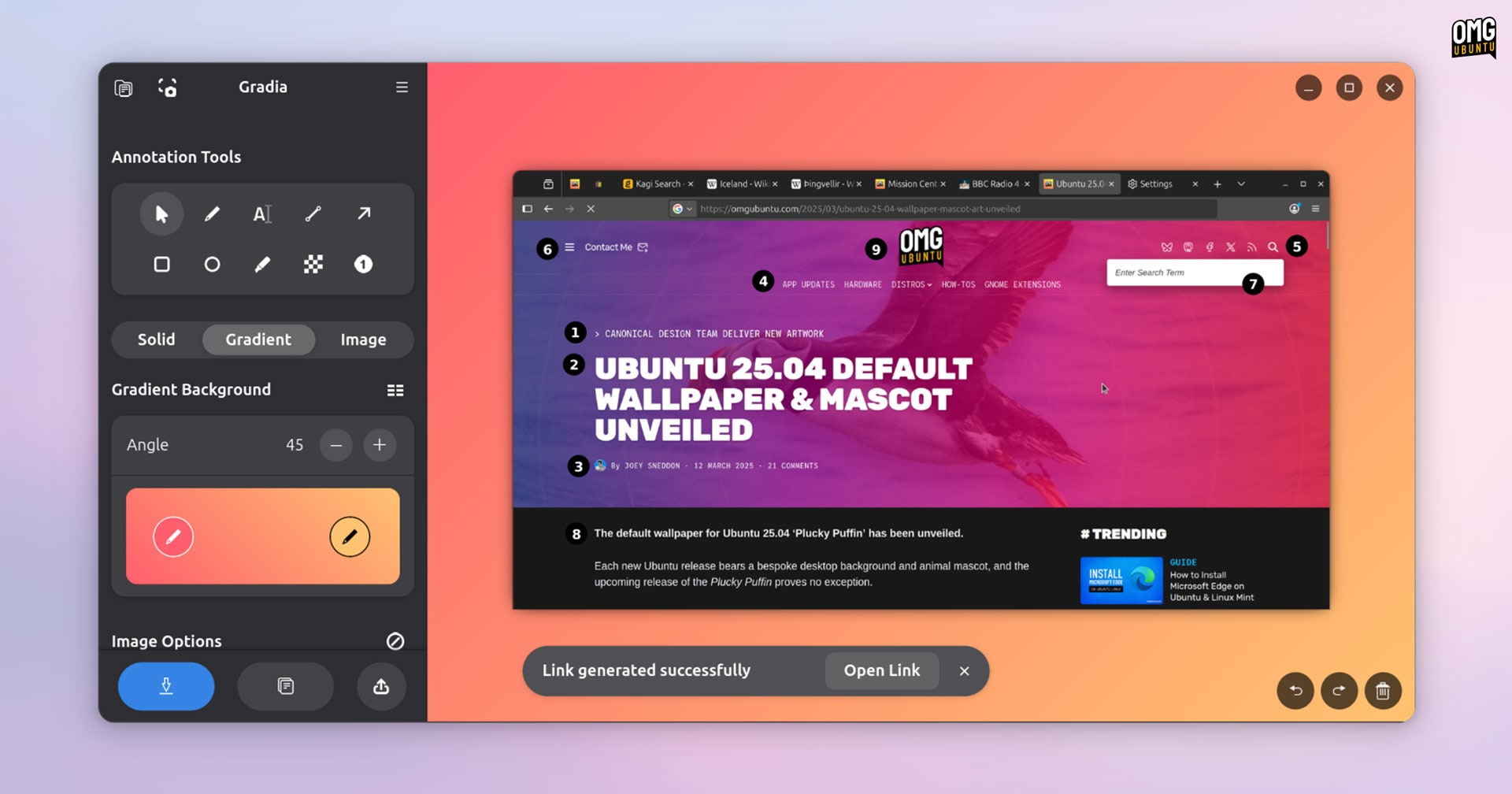
Gradia’s signature backgrounds are easier to customise thanks to a new gradient editor with preview. Set start and end colours on the gradient (click the pencil icon pips) then dial in an angle to find a gradation to complement the foreground image.
Being able to generate graphics featuring screenshots in specific aspect ratios is one of the neatest features of Gradia, and this update makes that easier.
Aspect Ratio now uses a pop-over menu, and includes fields to enter a custom resolution, which is ideal for creating images that match the specific dimension requirements of social media sites.
There’s also a new ‘auto borders’ option. It isn’t the most descriptive of options but when enabled it draws an outline around focus image, helping separate it from the background.
You may not always want to share a screenshot on top of a colourful background with padding and a specific aspect ratio, so there’s now a quick toggle to turn all that stuff off so you can focus on marking up a screenshot, photo or other image in its original size.
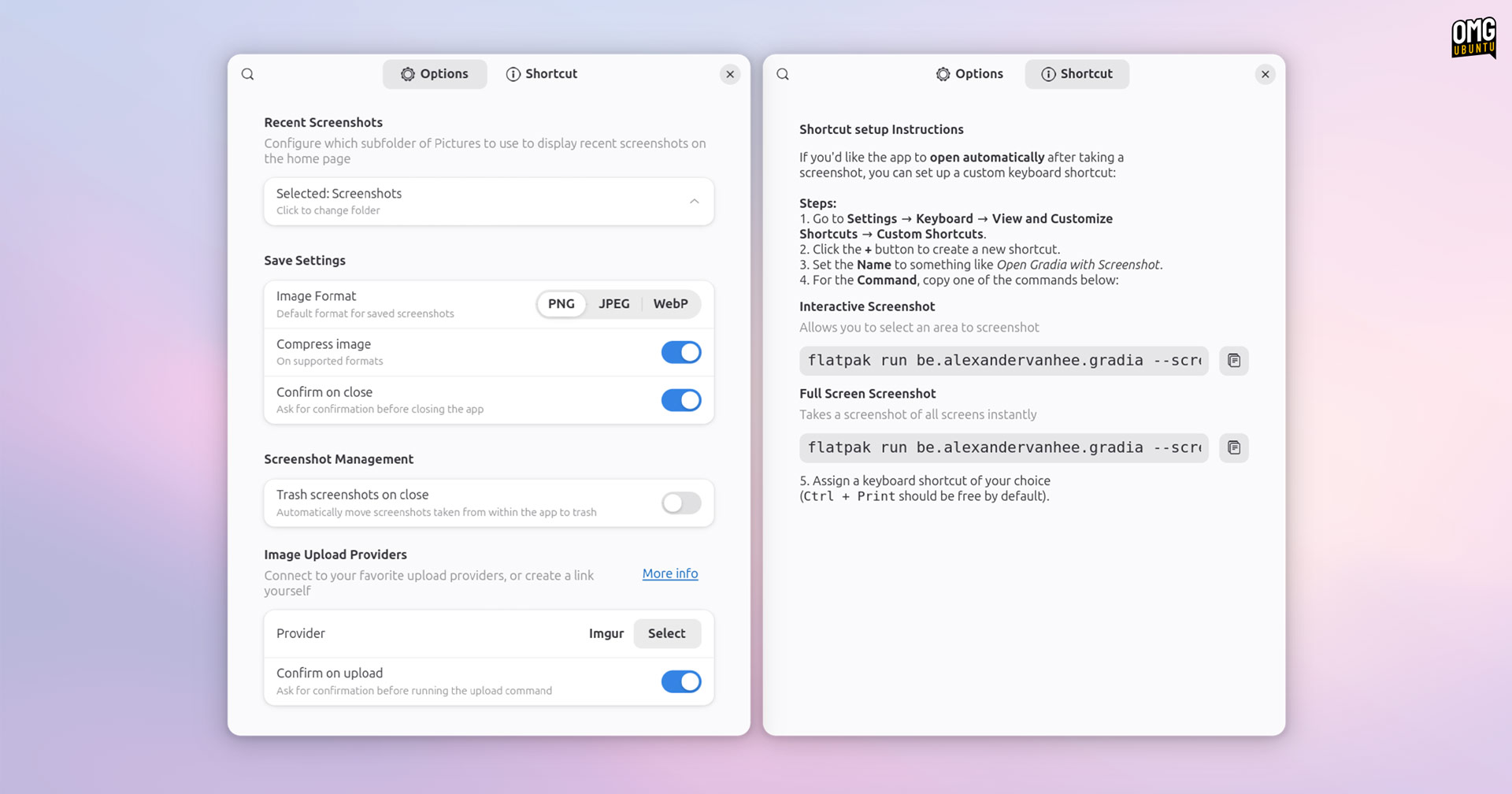
A new Options menu provides greater control. It’s now possible to set the default screenshots folder (where the app ‘sees’ screenshots and saves to), a preferred image format (JPG, PNG or WEBP), whether to use compression, and more.
But that is not all.
Direct Image Uploading Added
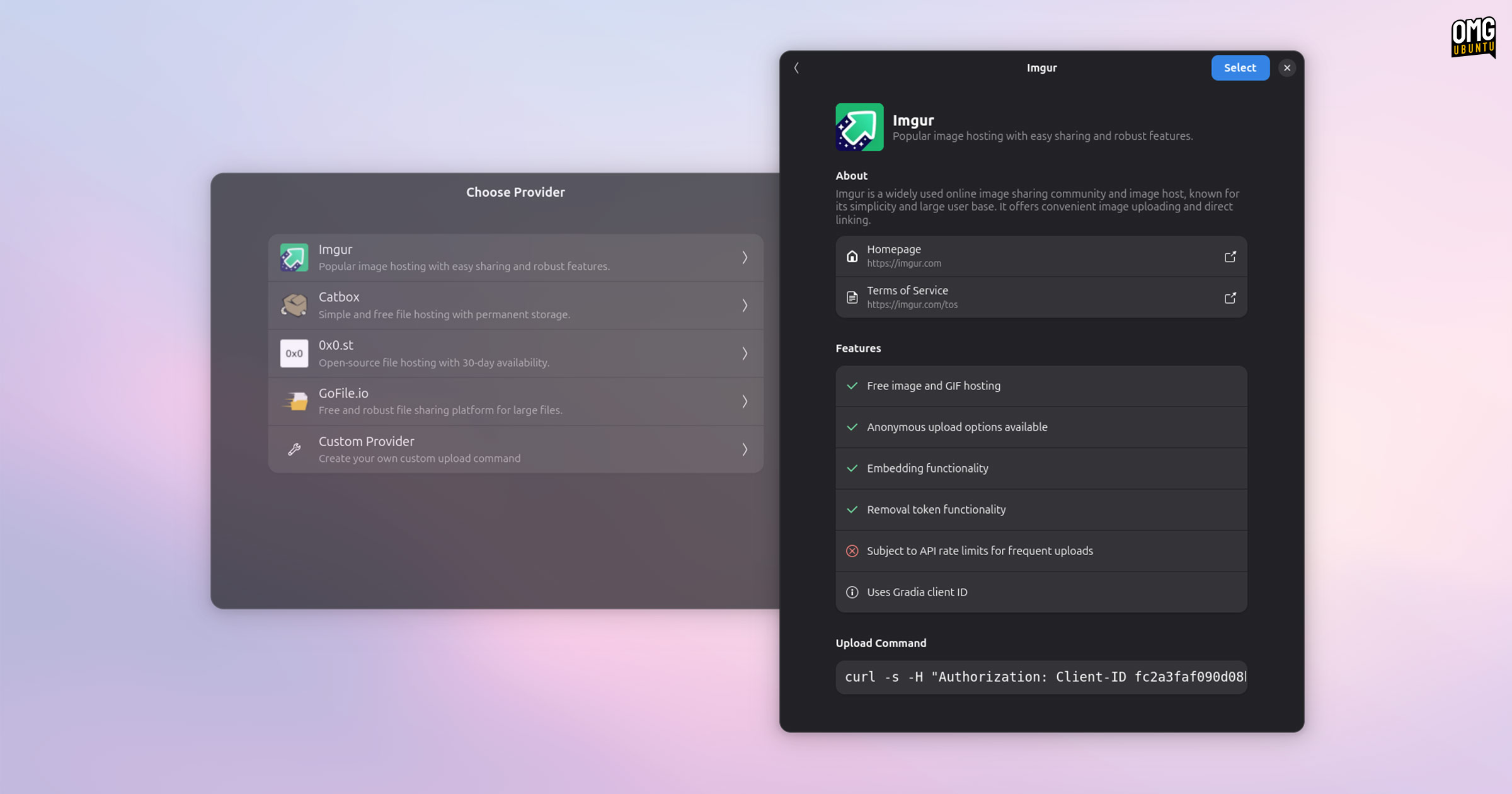
Gradia now supports direct image uploads to a choice of online image hosting provider.
This is an obvious feature addition, since uploading an image once and getting a link makes it easier to share in multiple places, and saves you the hassle of needing to save the file, open a browser, and upload it manually.
It’s also possible to add you own custom image uploader. Since the feature works entirely by commands, you just need to pop in your own. See the Gradia docs for details on how this works, and how to add your own custom command.
I should stress the third-party image hosting integration is optional. Nothing gets uploaded without you first selecting a provider, and the UI flow when ding so provides details on each, including important policy/privacy links, service features and any limitations.
After you pick a provider, click the upload button when working on a graphic to punt it your provider of choice. Once done, a sharable link is copied to the system clipboard ready for you to paste elsewhere.
Get Gradia
In all, this is a solid set of updates, giving this screenshot utility (it’s more of a screenshot markup tool than a screenshot taking tool, though it functions as the latter by hooking into the GNOME Shell screenshot UI) more utility.
You can install Gradia from Flathub. If you’d prefer to use a Snap, good news: one is on the way!
- Obviously, Gradia appeals to me. I write about Linux software on the daily, I take lots of screenshots, I prettify and watermark images for blog posts. It’d be weird if didn’t! Whether it’s the colourful gradients swaying me, or the well-executed user-experience – I find it a fun app to play with. ↩︎