
Easy Imageshack Uploading In Ubuntu

Imageshack.us is a popular way to host images for free without needing to login and create an account.

There are various ways to upload to Imageshack in Ubuntu €“ not least of which is the official Imageshack uploader available for Ubuntu! I’ve covered that before, so I’ll look at a few other alternatives available to users….

Shutter

Shutter, the popular screenshot tool, also has an export feature with Imageshack included as one of its services.

Simply right click on an image and choose ‘export’. You can then choose your service and upload.

It’s worth noting that you can open ANY image in Shutter so its an easy way to upload any image to Imageshack.

PyShare

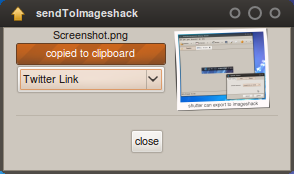
My preferred way is to use PyShare. PyShare is a Nautilus script that is accessed via the right-click menu. Simply click on an image and choose 'send to Imageshack' from a menu. Easy!

Once an image has uploaded, PyShare provides links with code wrapped-around for forums or HTML as well as thumbnails, direct link and a tiny twitter link.
Install
Installing PyShare is as easy as devouring a cup of coffee in the early morning. You will need to install python-pycurl (if it isn't already installed).

  • Download the script @ http://www.gnome-look.org/content/pyshare
  • Unpack the archive (right click > extract here)
  • Go to your home folder and press CTRL+H to show hidden files.
  • find the folder called '.gnome2' (note the period preceding it)
  • Place the extracted files into the 'nautilus scripts' folder

Related posts:

  1. How To Set Shutter As The Default Screengrab Tool In Ubuntu [Tips]
  2. Official Imageshack.us Uploader Application for Ubuntu (.deb)
Post a comment or leave a trackback: Trackback URL.
  • http://twitter.com/cryogenic Kevin

    Also, KDE has a “drop to imageshack” plasmoid. You just grab the image and drag it to the plasmoid and it uploads it to imageshack and gives you the URL. Pretty sweet.

  • http://skeleton-eel.blogspot.com/ Skeleton_Eel

    i’m using bash script with gui made by zenity , and add it to right click through nautilus actions , it’s very practical , just right click on the image then upload , and url will appear in simple info dialogue .

    http://img410.imageshack.us/img410/6461/imageshackus000upload.png

    http://img267.imageshack.us/img267/9922/screenshoturl.png

    this article talk about the script :
    http://www.linuxac.org/forum/linuxac64/thread15205.html

    it’s in arabic , you can use google translation : )

  • Anonymous

    Nice. I used to use the official ImageShack uploader in Windows, but when I switched to Ubuntu in 2006, there wasn’t as easy a solution as that. Glad times have changed, and thanks for the update! Installed Shutter and it works like a charm. :-D

  • http://www.facebook.com/mehdi.krit Mehdi Krit

    I use Gnome-Do nothing to install :)

    • mmiicc

      +1 :)

  • Anonymous

    Pretty good, I’ve installed the Imageshack uploader and shutter to give them both a try.

  • http://twitter.com/Temikus Artemis Yakimenko

    I’m definitely going to tey this, thanks!

  • .fosk.

    Hi!!
    May I ask how do you modify the screenshots to make them look like a Polaroid photo?
    (http://2.bp.blogspot.com/_FJH0hYZmVtc/Sw_82bfGabI/AAAAAAAAEnk/7QIVxdT9mbE/s1600/Screenshot.png)
    I love how they look!!
    Do you use some gimp script?

    Thank you very much!